Map Editor (Scene View)
The Map Editor is MCE's built-in tile painting tool, inspired by RPG Maker XP's map editor but integrated directly into Unity's Scene View. It lets you paint maps using your tile palettes without leaving the Unity editor.
Available in the Indie edition and above.
Overview
The Map Editor auto-activates whenever you open a scene that contains a map: a scene with a GridController, or, as a fallback, any scene that has a Tilemap. When active, three overlays appear in the Scene View -- a toolbar, a tileset palette and a status bar -- giving you an RPG Maker-style workflow inside Unity.
When you open a scene without a map the overlays hide again by themselves and the Scene View returns to its normal state.
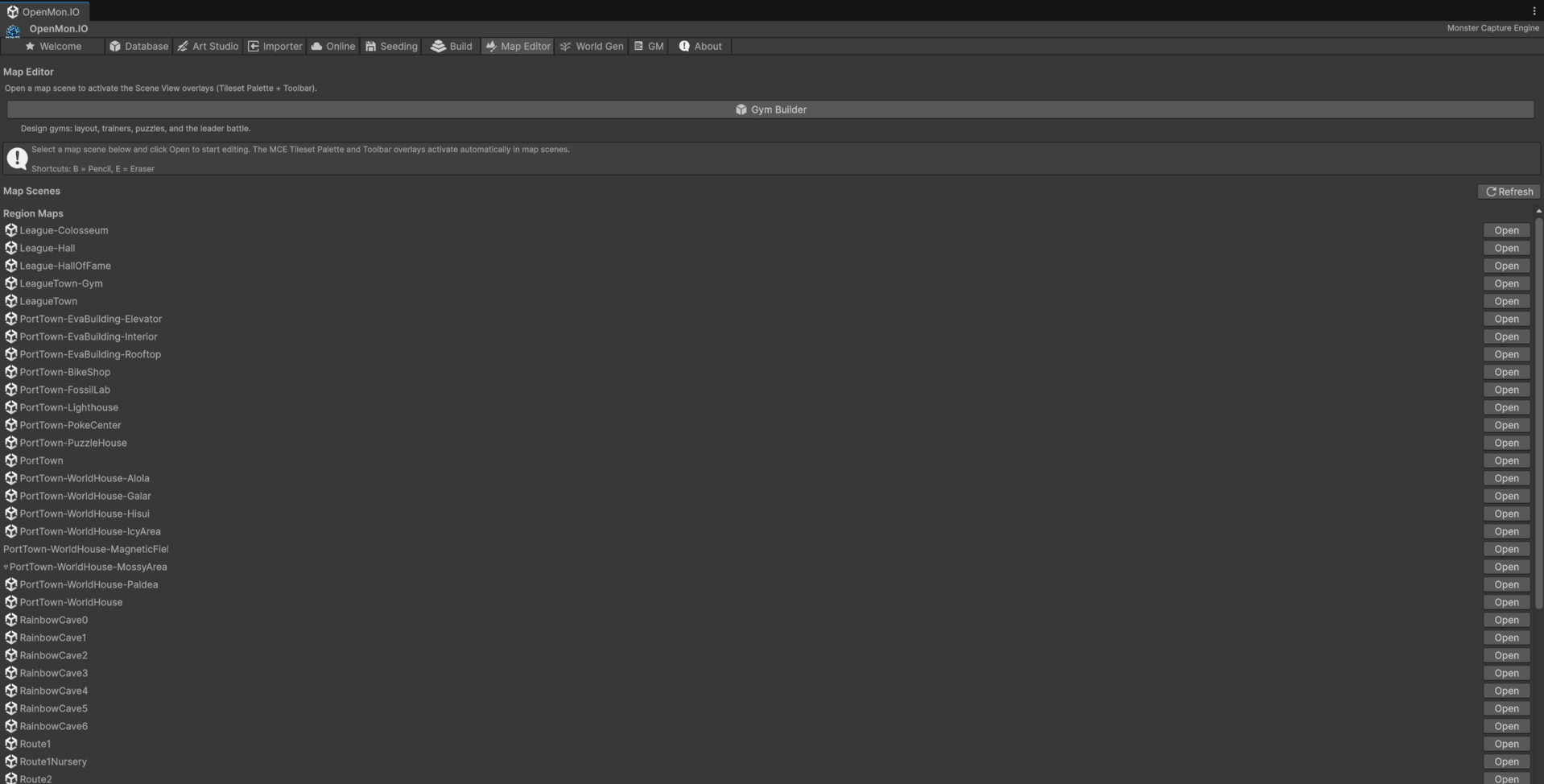
You do not need to open a separate window or menu. Simply open a map scene and the overlays appear. If they do not, ensure your scene has a valid GridController component (or at least a Tilemap), then re-open it. The Hub's Map Editor tab lists your map scenes.
Toolbar
The toolbar overlay (MCE Map Toolbar) sits in the Scene View and provides these controls:
Layer Tabs
| Tab | Paints on |
|---|---|
| Ground | The first Tilemap of the scene: base terrain |
| Above | The second Tilemap: decorations over the ground |
| Top | The third Tilemap: things that draw over the player (tree canopies, rooftops) |
| Events | Reserved for events; the pencil and eraser do nothing here |
| Collision | Reserved for the collision view; the pencil and eraser do nothing here |
Click a tab to switch the active painting layer. The layers map to the scene's Tilemaps in order: Ground is the first Tilemap found, Above the second and Top the third. The choice is remembered between sessions.
Tool Buttons
| Button | Shortcut | Description |
|---|---|---|
| Pencil | B | Draw tiles onto the map at the current layer |
| Eraser | E | Remove tiles from the current layer |
The active tool is highlighted. The toolbar also has a Grid toggle and shows a preview of the selected tile and its name.
Tileset Palette
The MCE Tileset overlay is the panel on the left. It lists every tile available to the project -- the tiles registered in your TileData assets plus any other tile asset in the project -- split into two sections:
Autotiles
Autotiles (RuleTiles) appear at the top, under the heading "Autotiles (N)". These are special tiles that automatically connect to adjacent tiles of the same type (e.g., water edges, cliff borders, path intersections). When you paint with an autotile, MCE calculates the correct variant from the tile's neighbors.
Animated tiles loop their frames directly in the palette so you can identify water, lava, and other animated terrain at a glance.
Regular Tiles
Below the autotiles (after a divider), the regular tiles are displayed in a grid. These are static tiles that paint exactly as shown.
Selection and Hover
- Hover: Moving the mouse over a tile in the palette highlights it.
- Click: Clicking a tile selects it as the active brush; the toolbar shows its preview and name.
- The selected tile is the one the Pencil paints.
At the top of the palette are three quick buttons: Undo, Redo and Save Scene.
Drawing Tools
Pencil (B)
The Pencil paints the selected tile at the mouse position with the left mouse button. Click to place a single tile, or click-and-drag to paint continuously. (Holding Alt, the Scene View's navigation key, does not paint.)
- Works on the active layer only.
- For autotiles, neighbors are recalculated as you paint.
- The cursor shows a highlighted square on the cell you are about to paint (red for the Eraser).
Eraser (E)
The Eraser removes the tile of the active layer at the mouse position. Click to erase a single tile, or click-and-drag to erase continuously.
Grid Overlay
When the Grid toggle is on, a grid is drawn in the Scene View matching the tilemap's cell size, with the tilemap's position offset taken into account. This helps you align tiles precisely and see cell boundaries while painting.
Undo, Redo and Save
| Action | Shortcut | Description |
|---|---|---|
| Undo | Ctrl+Z | Undo the last paint or erase operation |
| Redo | Ctrl+Y | Redo the last undone operation |
| Save | Ctrl+S | Save the open scenes |
Undo and Redo go through Unity's built-in Undo system, so all map edits are fully reversible and appear in the Edit menu's undo history. The palette's buttons do the same.
Status Bar
The MCE Status Bar overlay shows contextual information about the cell under the cursor:
- Tile -- the name of the tile on the active layer (or "(empty)").
- Layer -- the active layer.
- Cursor position in tilemap cell coordinates.
- Tool -- Pencil or Eraser.
Keyboard Shortcuts
| Shortcut | Action |
|---|---|
| B | Select Pencil tool |
| E | Select Eraser tool |
| Ctrl+Z | Undo |
| Ctrl+Y | Redo |
| Ctrl+S | Save scene |
Tips
- Paint large areas with drag. Click-and-drag with the Pencil tool to paint swaths of terrain quickly.
- Use autotiles for natural borders. Water, cliffs, and paths look best when using autotiles -- the engine handles edge transitions automatically.
- Work layer by layer. Paint ground terrain on Ground, then overlay details (flowers, rocks) on Above, and elements that draw over the player (tree canopies, rooftops) on Top.
- Undo freely. Every stroke is tracked by Unity's Undo system. Do not worry about mistakes.
- Check the status bar. If tiles are not appearing, verify you are on the correct layer.
Troubleshooting
| Issue | Solution |
|---|---|
| Overlays do not appear | Ensure the scene has a GameObject with GridController (or a Tilemap). Re-open the scene. |
| Tiles paint on the wrong layer | Check the active layer tab in the toolbar, and the order of the Tilemaps in your scene. |
| Nothing is painted on Events or Collision | Those two tabs are not painting layers. |
| Autotile edges look incorrect | Ensure adjacent tiles are the same autotile type. Repaint the area. |
| Grid overlay is misaligned | Verify the tilemap's cell size matches your tile pixel size. |
| Palette is empty | The palette lists the tiles of your TileData assets and the tile assets in the project. Create or import some. |