CommandGraph: Node-Based Event Scripting
The CommandGraph is MCE's visual scripting system for creating NPC behaviors, cutscenes, quests, and interactive events. It provides a node-based editor where you connect commands to define event sequences -- no C# code required.
This is the primary tool for game designers working with MCE in every edition, including the compiled editions where the source code is not included.
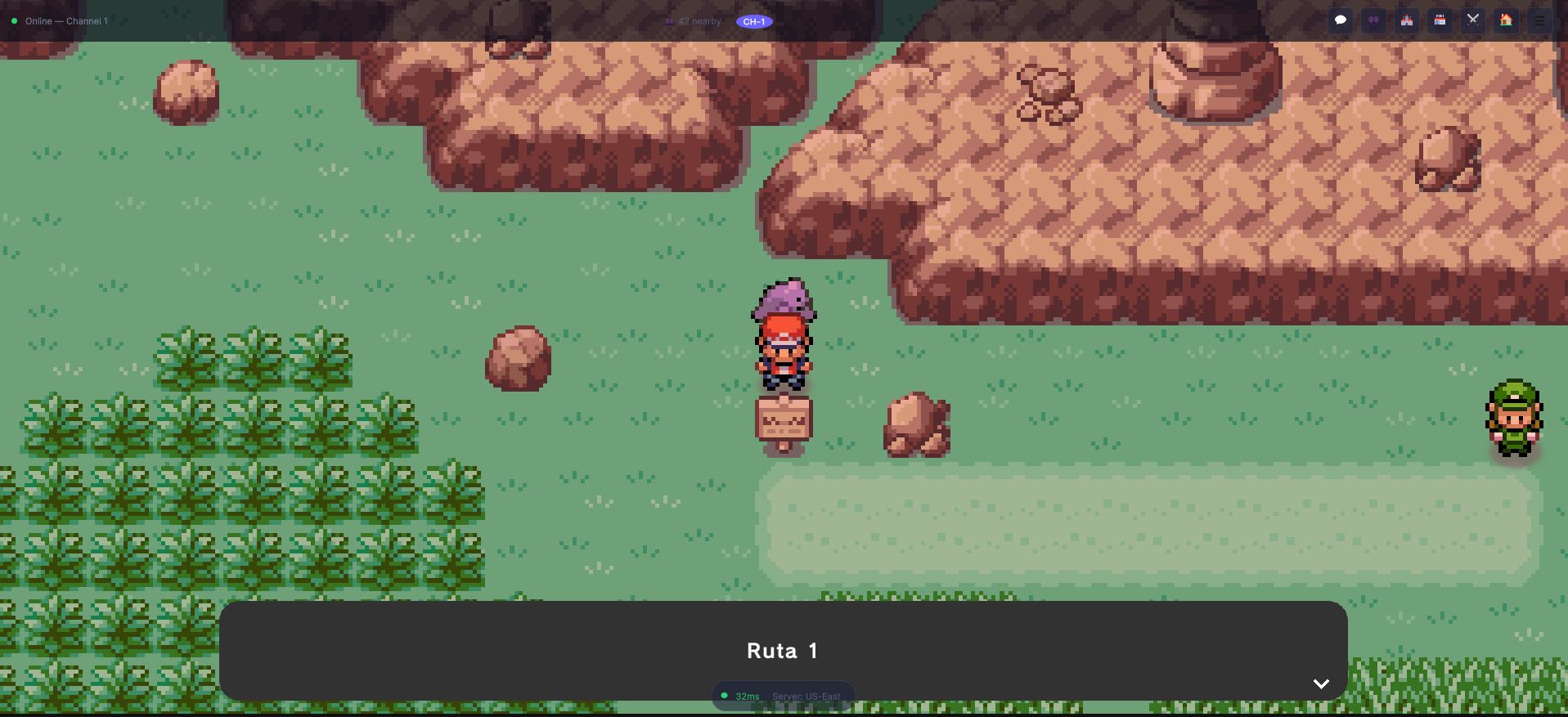
That box is the output of a two-node graph: a sign the player interacted with, and one ShowSignDialog command. Nothing about it was written in C# — the same shape scales to a branching cutscene, and the runtime does not know the difference.
What is CommandGraph?
A CommandGraph (ActorCommandGraph) is a node graph stored on an Actor (any interactable entity in the world). When the actor is triggered, the graph runs as a coroutine, one node after another.
Every actor has several graph slots, one per moment you may want to react to:
| Slot | Runs |
|---|---|
| On Enable Command Graph | When the actor is enabled. |
| Loop Command Graph | Over and over, while no other graph of the actor is running. |
| Interact Command Graph | When the player interacts with the actor. |
| On Demand Command Graph 0 to 3 | Only when another graph asks for it (RunOnDemand, RunMultipleOnDemand). |
Specialised actors add their own slots: TriggerActor has the "player about to enter / entered / about to be teleported / teleported" and "actor pushed inside" graphs, ActorCharacter has the "spot player" graph, and PushableActor has the "push" graph.
Think of a graph as a visual script where each node is a game action:
[Root] → [ShowDialog] → [IfPlayerHasBadge]
                           ├─ True  → [GivePlayerItem] → ...
                           └─ False → [ShowDialog: "Come back later"]
Creating Your First Event
Step 1: Create an Actor
The quickest way is the Hierarchy menu: right-click and choose GameObject > MCE > one of the ready-made actors:
| Menu | Creates |
|---|---|
Blank/Character, Blank/EmptyTrigger, Blank/Invisible | An empty character, trigger or invisible actor to fill in yourself |
NPCs/Simple dialog, NPCs/Give item, NPCs/Give monster | An NPC with a ready dialog, item gift or monster gift graph |
Trainers/Static, Circle, Look around, Random look around, Random walk | Trainers with the usual behaviors |
Other/Sign, Pick up item, cuttable trees, breakable rocks, boulders, whirlpools | The classic overworld props |
You can also add the component yourself. The concrete actor types are:
| Actor Type | Trigger | Use Case |
|---|---|---|
SimpleActor | Player interacts (no graphics or extra logic) | Invisible interaction points |
ActorCharacter | Player interacts; can walk, look around and spot the player | NPCs, trainers |
TriggerActor | Player steps onto it (does not block movement) | Auto-triggers, warps, hidden events |
ActorItem | Player interacts, gives its item and disappears | Item pickups on the ground |
PushableActor | Player pushes it (an ActorCharacter) | Boulders, puzzle blocks |
Actor and GridSubscribingActor are abstract base classes; you do not add them directly.
Step 2: Open the CommandGraph Editor
- Select the actor's GameObject.
- In the Inspector, find the graph slot you want (for example Interact Command Graph).
- Click Edit graph to open the node editor window. Delete graph clears it.
Step 3: Add Nodes
- Right-click in the graph editor.
- Choose Create Command /
<Category>/<Node>. The category is the node's folder (see below). - Connect nodes by dragging from one node's output port to another node's input port.
Step 4: Configure Nodes
Click a node to edit its fields in the Inspector panel: the text of a dialog, the item and amount of a gift, the tile of a teleport, the variable of a condition.
Node Categories
These are the categories as they appear in the Create Command menu. The list below names the most useful nodes of each; the complete set is in the menu.
Dialogs
| Node | Description |
|---|---|
| ShowDialog | Show a common dialog |
| ShowChoiceDialog | Show a dialog where the player makes a choice (one output port per choice) |
| ShowSignDialog | Show a sign dialog |
| ShowNoSkippableDialog | Show a dialog the player cannot skip |
| NextDialog | Skip to the next dialog |
| ShowUsedMoveDialog | A dialog telling a monster used a move |
| ShowMonsterPicture | Put a monster's front picture in a framed window, or take it down |
Variables
Conditions and variable changes. Every If... node has two output ports, True and False.
| Node | Description |
|---|---|
| SetBoolVariable, SetIntVariable | Set a game variable |
| IfBool, IfIntEquals, IfIntCompare | Branch on a bool or on an int compared with a value (less, greater, equal...) |
| IfIntVariablesCompare | Compare an int variable against another int variable |
| SwitchIntVariable | One output port per value of an int variable |
| WhileBool, WhileCondition | Loop while a condition holds |
| IfPlayerCharacterIs, IfPlayerDirectionIs | Branch on the chosen player character or the direction it faces |
| SetTemporalBoolVariable, SetTemporalIntVariable, IfTemporalBool | Variables of the running actor that are not saved with the game |
Game variables are chosen through a variable reference (the global storage or a scene's storage). They persist in save data and can be read from any graph or script.
Items
| Node | Description |
|---|---|
| GivePlayerItem, TakePlayerItem | Add or remove an item in the player's bag |
| GivePlayerMoney | Give the player money |
| IfPlayerHasItem | Branch on whether the player has an item |
| ChooseItemDialog | Ask the player to choose an item and run commands accordingly |
Monsters
| Node | Description |
|---|---|
| GiveMonsters | Give monsters to the player (fixed species or random). Needs a grant id in the online layer: see Monster Gifts |
| HealPlayerRoster | Heal the whole party |
| ChooseMonsterDialog, ChooseTwoMonstersDialog | Ask the player to choose one or two monsters |
| ChangeMonsterNickname, RemoveMonsterNickname | Rename a monster |
| MoveTutor, RemindPreviouslyLearntMoves | Teach a move or remind past moves |
| IfMonsterCanLearnMove, IfRosterHasMove | Branch on moves |
| OpenStorage | Open the monster storage |
Battles
| Node | Description |
|---|---|
| SingleTrainerFight | Fight a single trainer |
| SingleWildFight, DoubleWildFight | Trigger a fight against wild monsters |
| FightFromTemplate | Launch a fight from a battle template |
| RandomFightAgainstRandomRosters | A random fight against one or two random rosters |
| StartTowerRun | Start a Battle Tower run |
| IfCanHaveDoubleBattle | Branch on whether a double battle is possible |
Badges, Dex, Quests
| Node | Description |
|---|---|
| GiveBadge, IfPlayerHasBadge | Give a badge / check for one |
| GiveDex, IfPlayerHasDex, IfDexIsComplete, RegisterMonsterAsSeen | Dex handling |
| StartQuest, UpdateQuestObjective, ProgressQuestObjective, CompleteQuest, FailQuest | Quest progression (see Quest System) |
| IfPlayerHasQuest, IfCompletedQuest, IfQuestFailed, IfCurrentQuestObjective | Branch on quest state |
Animations
Characters, the player and the screen.
| Node | Description |
|---|---|
| Move, MovePlayer, WalkToPlayer | Walk a character, the player, or toward the player |
| Look, LookAtPlayer, ForcePlayerToLook | Turn a character |
| JumpCharacter, WanderWithinRange | Jump; wander around a start tile |
| HideCharacter, ShowCharacter, HidePlayer, ShowPlayer | Show or hide graphics |
| MoveFollower, LookFollower | Walk or turn the monster that follows the player |
| FadeScreenToBlack, OpenDoor | Fade the screen; open a door on the actor's tile |
| PlayExclamation, PlayEmotion | Show a balloon over a character: see Emotion Balloons and Emotes |
Sounds
| Node | Description |
|---|---|
| PlayMusic, StopMusic, SaveMusic, RestoreSceneMusic | World music on top of the map's own |
| PlaySound, PlayMonsterCry, WaitForAudio | Sounds and cries |
Shops, Trade, Saves, Breeding
| Node | Description |
|---|---|
| BuyInShop, SellInShop | Run the shop logic for buying or selling |
| TradeSelectedMonster | Trade the monster the player has chosen |
| AutoSaveIfEnabled | Auto save if enabled in the configuration |
| StoreTwoSelectedMonstersInNursery, IfEggIsReady, BreedEggInNurseryAndGiveToPlayer | The nursery |
Utils
| Node | Description |
|---|---|
| TeleportPlayer | Teleport the player to another location (validated by the server when online) |
| TeleportActorInsideScene, PlaceActor | Move an actor inside the current scene |
| WaitTime, LoopXTimes, RunInParallel | Timing and flow |
| LockPlayerInput | Lock or unlock the player's movement during a cutscene |
| SetActorActive, AutoDestroy | Switch another object off, or destroy the actor |
| SwitchOnDayMoment, SwitchTimeOfDay | Branch on, or set, the moment of the day |
| SetLastHealLocation, SetLastHealLocationToCurrent | Where the player reappears after losing |
| LogMessage | Log a message to the console |
Connecting Nodes
The CommandGraph uses a flow-based connection model:
- Each graph starts at a Root node.
- Each node has an input port and one or more output ports.
- Most nodes have exactly one output port (the next command).
If...nodes have True and False;ShowChoiceDialoghas one port per choice;SwitchOnDayMomenthas one per moment of the day. - A node without a connected output port ends that path of the graph.
Example: Shop NPC
[Root]
  → [ShowDialog: "Welcome! Would you like to browse my wares?"]
    → [ShowChoiceDialog: "Buy" / "Sell" / "No thanks"]
      ├─ "Buy"       → [BuyInShop]
      ├─ "Sell"      → [SellInShop]
      └─ "No thanks" → [ShowDialog: "Come back anytime!"]
Example: Quest Giver
[Root]
  → [IfBool: rescued_lost_monster]
    ├─ True → [IfBool: quest_reward_given]
    │           ├─ True  → [ShowDialog: "Thanks again!"]
    │           └─ False → [GivePlayerItem: TM, 1]
    │                       → [SetBoolVariable: quest_reward_given = true]
    │                       → [ShowDialog: "Take this as thanks!"]
    └─ False → [ShowDialog: "Please help me find my lost monster!"]
               → [SetBoolVariable: quest_find_monster = true]
Example: Gym Leader
[Root]
  → [IfPlayerHasBadge: Boulder Badge]
    ├─ True  → [ShowDialog: "You've already proven yourself!"]
    └─ False
      → [ShowDialog: "I am the Gym Leader! Prepare for battle!"]
      → [SingleTrainerFight]
        ├─ On Player Won  → [ShowDialog: "Impressive! You've earned this."]
        │                   → [GiveBadge: Boulder Badge]
        └─ On Player Lost → [ShowDialog: "Train harder and come back!"]
SingleTrainerFight has three output ports: the plain next-command port, On Player Won and On Player Lost. The "lost" path only runs when the node is set not to respawn the player after a defeat.
Testing Events
- Enter Play Mode in the editor.
- Walk your character to the actor.
- Press the interact button.
- The graph executes and you can watch the flow.
If a graph is not behaving as expected:
- Check the Console for errors.
- Verify that referenced game variables, items, and monsters exist.
- Make sure all output ports are connected -- an unconnected port silently ends that path.
- Add a LogMessage node to print values during execution.
Best Practices
- Name your actors descriptively. "NPC_Professor_Lab" is better than "Actor (3)".
- Use game variables for state. Do not rely on actor enable/disable alone.
- Test both branches. Every
If...node should work for both True and False. - Keep graphs readable. Use spatial layout to make the flow clear. Group related nodes together.
- Reuse patterns. Once you have a working shop NPC, duplicate and modify it for other shops.
- Save before testing. CommandGraph changes are scene-level changes that can be lost if Unity crashes.
For the C# side -- running a graph from code or writing your own node -- see the CommandGraph API.