Grid-Based Movement System
MCE uses a tile-based grid movement system built on Unity's Tilemap. The player and NPCs move one tile at a time on a discrete grid, with collision detection, terrain effects, and cross-map transitions handled by the grid system.

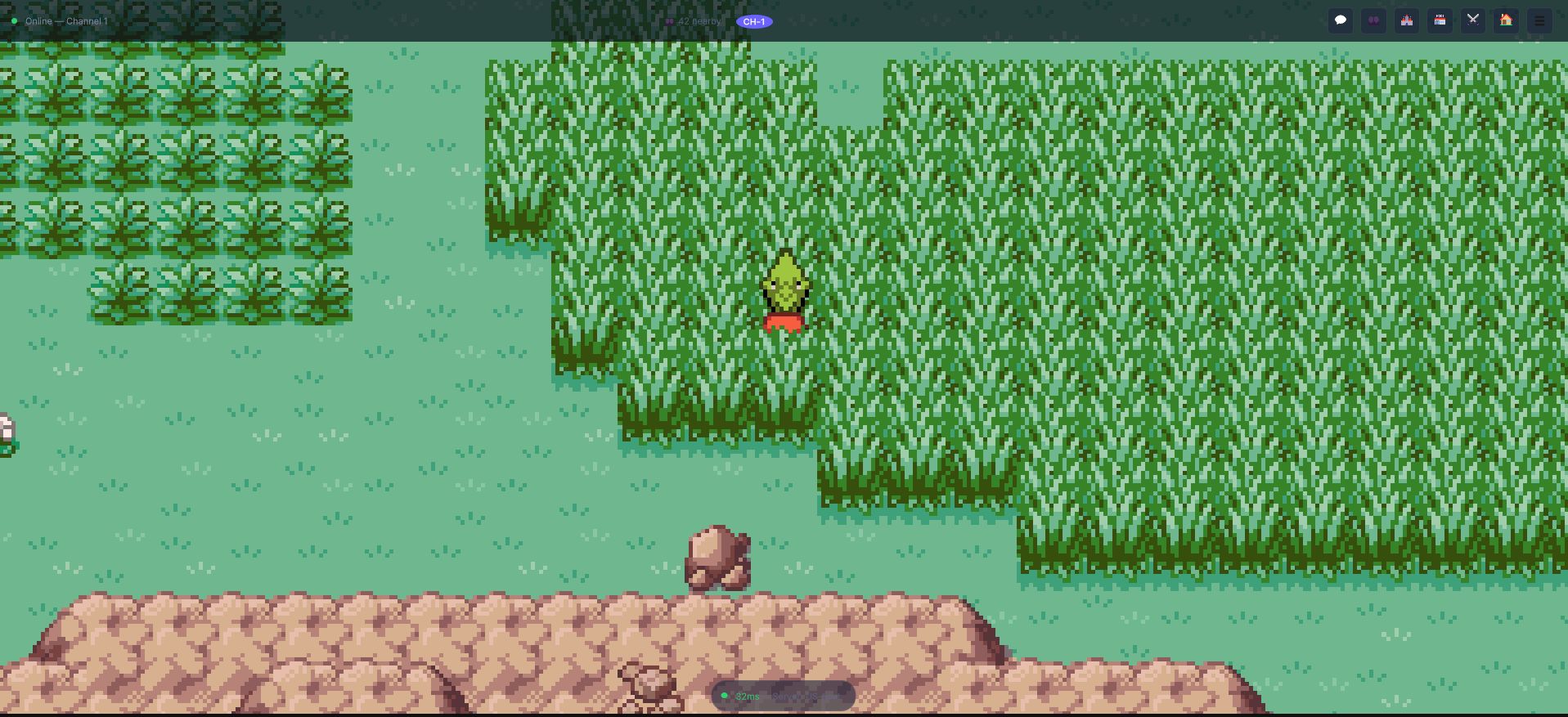
The player is always on exactly one tile. There is no half-step and no sub-tile position, and that is what makes encounters, collision and cross-map transitions decidable rather than approximate.
Core Components
GridController
The GridController is the per-scene manager for the tile grid. It sits on the same GameObject as Unity's Grid (it requires one) and:
- Finds the scene's Tilemaps and answers tile queries across them, from the highest sort order to the lowest.
- Reads each tile's movement type from the project's
TileDataasset (see Custom Tile Types). - Tracks the characters and actors registered on the grid.
- Holds the scene's
SceneInfo(see below). - Answers collision queries: can a character move to this tile, from this tile?
Each map scene has one GridController on its grid root.
MCECharacterController
The MCECharacterController handles movement for any character (player, NPC or a monster) on the grid:
- Grid-snapped movement: Characters move exactly one tile per step.
- 4-directional movement: Up, Down, Left, Right. No diagonal movement.
- Sprite rendering: Updates the sprite direction and walk animation.
- Collision checking: Queries the
GridControllerbefore each move. - Movement speed:
Speed, in seconds per tile (0.25 by default).
PlayerCharacter
The PlayerCharacter adds player-specific features on top of the controller:
- Input handling (keyboard and gamepad).
- Interaction triggers (pressing the action button while facing an NPC/object).
- Wild encounter handling, repel steps and the step counter (
GlobalGameData.StepsTaken, which also drives egg cycles and friendship). - Running, biking and swimming.
- Follower monster coordination and the emote hotkeys.
GlobalGridManager
The GlobalGridManager handles cross-map navigation:
- Keeps the list of loaded grids and finds the grid that has a tile at a world position, so a character can walk from one map into its neighbour.
- Loads the neighbours of the current map additively, and the neighbours of those neighbours (two hops deep), so crossing an intermediate map does not unload the one you came from.
- Hands over the player when a character crosses from one grid to another.
Tile Types
Every tile asset has a movement type (TileType), assigned in the TileData asset:
| TileType | Description |
|---|---|
NonExistent | The tile has no data; treated as void |
Walkable | Normal ground |
NonWalkable | Solid obstacle (walls, trees, rocks) |
Jumpable | A ledge: crossed by jumping, in one direction |
Bridge | Bridge surface, layered above what is under it |
BridgeEntrance | Transition tile between ground and bridge |
Water | Water that needs swimming to cross |
Waterfall | Vertical water that can be climbed |
Slippery | Ice: the character slides until it hits an obstacle |
WalkableNotBikable | Walkable on foot but not on a bicycle |
On top of the type, tile behaviours (components on the tile's prefab) add logic: EncounterTile marks a wild encounter zone, OneWayJumpableTile sets the direction of a ledge, ForceCharacterToKeepMoving makes conveyor belts and currents, TallGrass, LadderUp, WaterfallEdge, WhirlwindInDirection and more. They are all described in Custom Tile Types.
Setting Up a Map
Step 1: Create the Tilemap Structure
MCE maps use a standard Unity Tilemap hierarchy:
Grid (Grid + GridController)
  └── Ground        (Tilemap, TilemapRenderer, sorting order 0)
  └── GroundOverlay (Tilemap, TilemapRenderer, sorting order 1)
  └── Above ...     (more Tilemaps as needed)
  └── Actors        (NPC GameObjects)
There is no separate collision tilemap to paint: what blocks movement is the TileType of the tiles you paint.
Step 2: Paint the Map
Use the Map Editor overlay, or Unity's Tile Palette (Window > 2D > Tile Palette), to paint your map:
- Ground layer: Base terrain (paths, grass, dirt, water edges).
- Overlay layers: Decorations on top of ground (flowers, rocks, shadows) and what draws over the player (tree canopies).
- Encounter tiles: Tiles whose prefab carries an
EncounterTilewhere wild monsters appear.
Step 3: Add the GridController
- Select the Grid root GameObject.
- Add the
GridControllercomponent. - The controller receives the project's
TileDataasset through dependency injection; make sure every tile you painted is registered there with the rightTileType(the asset's Populate and CheckInvalid buttons help). A tile that is not registered is treated as walkable and logs a warning.
Step 4: Configure SceneInfo
Each map scene needs a SceneInfo component pointing to a SceneInfoAsset (create it with New Scene Info in the Hub's Database tab). Assign the component to the GridController's Scene Info field. The asset holds:
| Field | Description |
|---|---|
| Scene | The scene this info describes |
| Localizable Name Key | Display name of the location (shown in the header) |
| Neighbours / Neighbour Offsets | The maps that connect to this one and where they sit, in tiles (seamless crossings) |
| Background Music | Music for this map |
| Is Affected By Sky, Default Weather, Allowed Weathers | Day/night light and weather |
| Can Open Storage Here, Can Fly From Here, Can Teleport From Here, Can Escape Rope From Here, Can Fish Here | What the player may do here |
| Is Dungeon, Is Dark | A dungeon map uses Cave encounters on every tile |
| Region, Tags | The region and the scene tags used by game logic (for example "Cave", "Town", "Route") |
| Encounters, Battle Scenarios Per Encounter, Own Encounter Chances | Wild encounters of the map: see Wild Encounters |
Special Terrain
Bridges
Bridges let a character walk over tiles that would otherwise be impassable (like water):
- Use a tilemap layer with a higher sorting order for the bridge.
- Give the bridge tiles the
Bridgetype and the tiles where you step onto itBridgeEntrance. - The character walks on the bridge layer when it steps onto it.
Bridge logic handles the Z-ordering -- the character renders above the water but below bridge railings (OverBridgeBodySortOrder).
Slippery Tiles (Ice)
On ice tiles, the character slides in the direction it is moving until it hits a wall or a non-ice tile:
- Give the ice tiles the
Slipperytype. - The
MCECharacterControlleroverrides input and continues the movement direction. - Add walls or obstacles to create ice puzzle layouts.
Ledges
Ledges are one-way tiles -- the character can jump down but not climb back up:
- Give the tile the
Jumpabletype and add theOneWayJumpableTilebehaviour to its prefab. - Set its Jump Direction.
- A hop animation plays when the character crosses the ledge.
Waterfalls
Waterfalls can be climbed with the appropriate ability:
- Give the waterfall tiles the
Waterfalltype (the edge can useWaterfallEdge). - When the player faces the waterfall and uses the climbing ability, the character ascends.
Cross-Map Transitions
Seamless Connections
For maps that connect directly (Route 1 continues into Route 2 at the north edge), list each map in the other's Neighbours with the tile Neighbour Offsets that place it. The GlobalGridManager loads the neighbours additively and the character simply walks from one grid into the other: when the current grid has no tile at the target position, the manager looks for a loaded grid that does. A tile of a neighbour that is a wall (NonWalkable) or void (NonExistent) still blocks the step.
Warps (Doors, Caves, Teleports)
To move the player to another place:
- Place a
TriggerActoron the door or entrance tile (aTriggerActordoes not block movement and runs a graph when the player steps in). - In its CommandGraph add a TeleportPlayer node with the destination as a scene location (the target
SceneInfoAssetand the tile). When online, the server validates the teleport first. - Optionally add OpenDoor, FadeScreenToBlack and sounds around it to dress the transition.
Imported maps get their warps placed for you by the importer's scene integration.
Player Movement Configuration
Movement speed is the Speed field of the character, in seconds per tile (0.25 by default, i.e. four tiles a second). The state of the character scales the time per tile:
| State | Multiplier of the time per tile |
|---|---|
| Walking | 1 |
Running (IsRunning) | 0.33 |
Biking (IsBiking) | 0.15 |
Swimming (IsSwimming) | 0.66 |
| Jumping | the hop plays at 1.5x of the step time |
The step counter (GlobalGameData.StepsTaken) advances with every step and drives egg cycles and friendship ticks.
Monster Followers
MCE supports a follower system where the first monster in the player's party walks behind them in the overworld:
- The
MonsterFollowerControllermanages the follower's position and sprite. - The follower stays one tile behind the player and catches up behind it after cutscenes.
- Follower sprites are configured per species and form in the
MonsterEntry(theWorldIdleSprite*andWorldWalkingSprite*fields). - The player can interact with the follower (face it and press the action button) to see a reaction; an imported game can bring its own talk table, and the follower can show emotion balloons.
If a monster species does not have an overworld follower sprite assigned, the follower will not appear. Create follower spritesheets as 4-direction walk cycle sheets.
Best Practices
- Keep tile types consistent. Register every painted tile in
TileDataand use the same type for the same kind of terrain. - Test warp connections both ways. Make sure you can go from A to B and back from B to A.
- Use scene tags for logic. Rather than hardcoding map names, tag maps as "Cave", "Water", "Forest", etc.
- Optimize large maps. Very large tilemaps can impact performance. Consider splitting into multiple connected scenes with Neighbours.
- Test with gamepad. Grid movement should feel responsive on both keyboard and controller.