Creating Monsters
This guide covers everything you need to know about creating and configuring monster species in MCE. We cover the MonsterEntry ScriptableObject in depth, including forms, variants, and advanced configuration.
MonsterEntry Overview
Every monster species in MCE is defined by a MonsterEntry ScriptableObject. This is the authoritative data definition for a species -- it contains the base stats, types, abilities, learnable moves, evolution paths, and visual assets.
A MonsterEntry represents the species (e.g., "Flameleon"), while a MonsterInstance represents a specific individual (e.g., "the player's level 25 Flameleon with these specific IVs, EVs, nature, and moves").
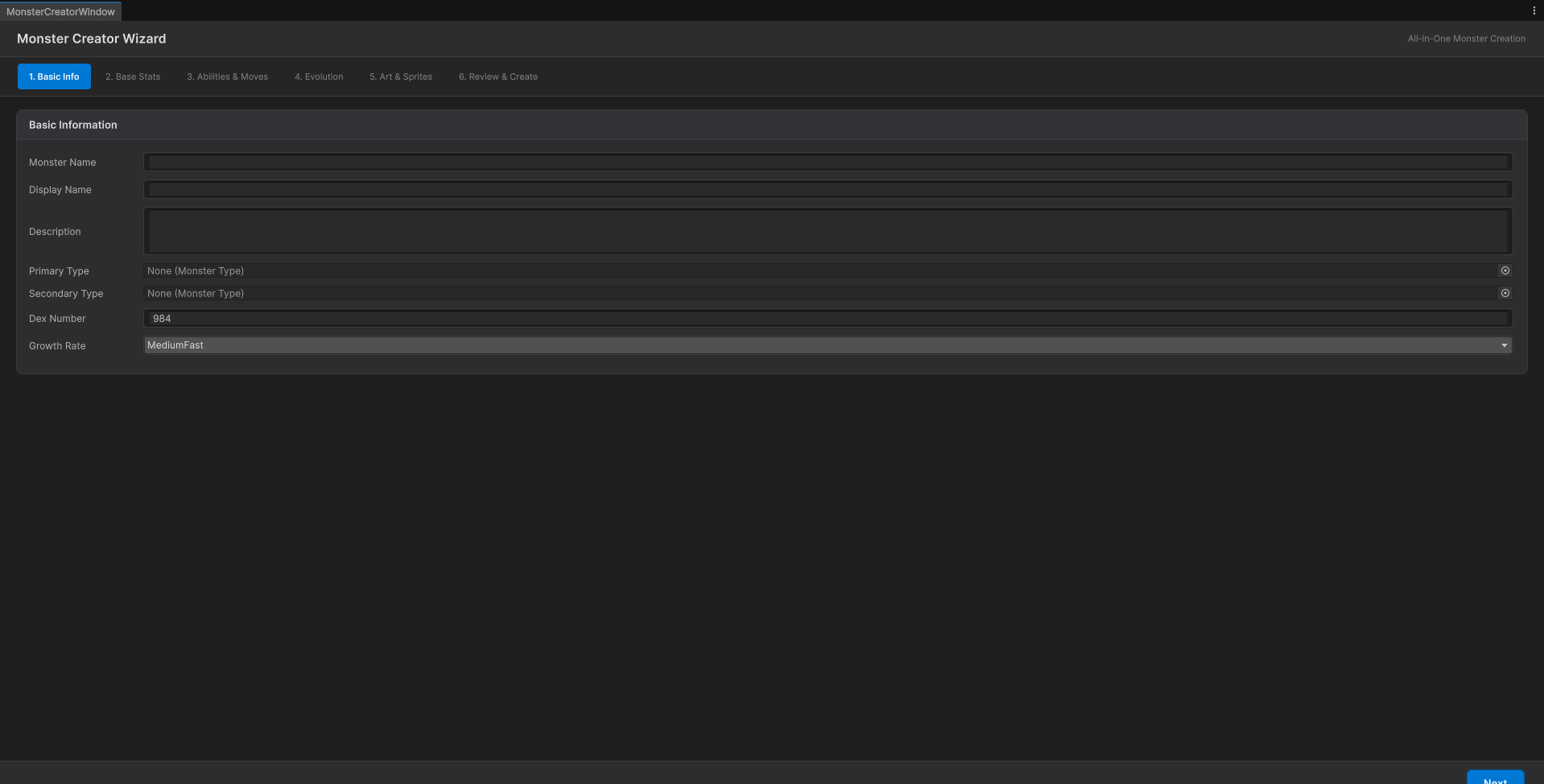
The wizard walks the same six steps this guide does, in the same order — basic info, base stats, abilities and moves, evolution, art, and a final review before anything is written to disk. Nothing is created until that last step, so you can back out of a species you started by mistake without leaving an orphan asset behind.
Creating a MonsterEntry
Using the Wizard (Recommended)
The fastest way to create a monster is the wizard: open the OpenMon Hub (Tools > MCE > OpenMon Hub) → Art Studio tab → Monster Creator.
See the First Monster guide for a step-by-step walkthrough of the wizard.
Manual Creation
- Right-click in your Project window:
Create > MCE > Monster Database > Monster. - Name the asset after your species (e.g.,
Flameleon). - Select it and configure all fields in the Inspector.
MonsterEntry Structure
A MonsterEntry is a species-level container. The actual stat, type, and visual data lives inside per-form entries.
Species-Level Fields (MonsterEntry)
| Field | Type | Description |
|---|---|---|
DexNumber | uint | Unique national dex number |
AvailableForms | List<Form> | All forms this species can have |
DataByForm | List<DataByFormEntry> | Private per-form configuration data (index 0 = base form) |
Per-Form Fields (DataByFormEntry)
Each form in the private DataByForm list holds its own complete copy of the following; there is no inheritance between forms. The list is kept in sync with AvailableForms, and you read an entry with monsterEntry[form].
Identity
| Field | Type | Description |
|---|---|---|
CatchRate | byte | Base catch rate (0-255). Lower = harder to catch |
BaseExperience | uint | Experience points given when defeated |
GrowthRate | GrowthRate | XP curve: Fast, MediumFast, MediumSlow, Slow, Erratic, Fluctuating |
Types
| Field | Type | Description |
|---|---|---|
FirstType | MonsterType | Primary type (required) |
SecondType | MonsterType | Secondary type (set to None for single-type) |
Base Stats
Stored as a dictionary keyed by Stat enum. Configured via the Inspector.
| Field | Type | Description |
|---|---|---|
BaseStats | SerializableDictionary<Stat, byte> | Stat → value dictionary |
EV Yields
When this species is defeated, which EVs does the victor gain?
| Field | Type | Description |
|---|---|---|
EVYield | List<StatByteValuePair> | Per-stat EV awards |
Abilities
| Field | Type | Description |
|---|---|---|
Abilities | List<Ability> | The regular abilities (the wizard fills up to two) |
HiddenAbilities | List<Ability> | The hidden abilities |
Gender and Breeding
| Field | Type | Description |
|---|---|---|
HasBinaryGender | bool | Whether male/female distinction exists |
FemaleRatio | float | Chance of being female (0-1) |
EggGroups | List<EggGroup> | Breeding compatibility groups |
EggCycles | byte | Steps to hatch (multiply by a base step count) |
DataByFormEntry Structure
MCE supports multiple forms per species (e.g., Alolan forms, Mega forms, seasonal variants). Each form can override any or all of the base species data.
The private DataByForm list on MonsterEntry holds one entry per form:
[Serializable]
public class DataByFormEntry
{
    public Form Form;                              // The form identifier
    public MonsterType FirstType;                  // Type 1
    public MonsterType SecondType;                 // Type 2
    public SerializableDictionary<Stat, byte> BaseStats; // Dictionary keyed by Stat enum
    public List<Ability> Abilities;                // Regular abilities of this form
    public List<Ability> HiddenAbilities;          // Hidden abilities of this form
    public Material Front;                         // Battle visuals (materials)
    public Material Back;
    // ... plus male/shiny material overrides, evolutions, breeding data
}
Setting Up Forms
- Create a
FormScriptableObject:Create > MCE > Monster Database > Form. - Name it descriptively (e.g.,
MegaFlameleon,AlolanDiglett). - Add it to the
AvailableFormslist of yourMonsterEntry. A matchingDataByFormEntryappears inDataByForm. - Fill in that entry. To start from an existing form instead of from zero, use the Copy Data From Form To Form button of the
MonsterEntry(shown when the species has more than one form) and then change only what differs.
The first form of AvailableForms is the base form (GetFirstAvailableForm()). Do not add shiny forms to the list: a shiny version is derived from the base form through the Form's ShinyVersion field.
Forms and Variants
MCE supports several common form patterns:
| Pattern | Implementation |
|---|---|
| Mega Evolution | A Form flagged as a combat form (IsCombatForm, CombatFormType = Mega) with its own DataByFormEntry (boosted stats, special sprite). The base form's MegaEvolutions dictionary maps the required Item to the Mega Form; the battle's BattleManagerMegaModule performs the change. |
| Regional Variants | A Form with its own DataByFormEntry (different types, stats, sprites). An encounter entry chooses which form appears through its Form Calculator (SingleFormEncounter always returns one form). |
| Gender Differences | One form entry with HasBinaryGender set, FemaleRatio, and the male variants of the materials and icons (FrontMale, BackMale, IconMale, ...). |
| Battle-Only Forms | Combat forms (CombatFormType Mega, Max or Other). They are left out when the engine picks a random form for a gift or a Tower opponent. |
Anything else -- seasonal forms, for example -- is a plain extra Form; your own graph or script decides when a monster takes it.
Evolution Chains
Each per-form entry (DataByFormEntry) has an Evolutions list of EvolutionData entries. Most built-in types derive from TargetSpeciesAndFormEvolutionData, which carries the evolution target:
[Serializable]
public abstract class TargetSpeciesAndFormEvolutionData : EvolutionData
{
    [SerializeField] protected MonsterEntry TargetSpecies; // What it evolves into
    [SerializeField] protected Form TargetForm;            // Form it evolves into
    [SerializeField] protected bool KeepShinyIfItIs;       // Preserve shininess
    // Trigger conditions are defined by the concrete class
}
Evolution types are plain [Serializable] classes serialized polymorphically via [SerializeReference] — they are not separate ScriptableObject assets. You pick the appropriate evolution type in the Inspector (e.g., EvolveByLevel) and configure its parameters (e.g., TargetLevel = 16).
See the Evolution Guide for all 37 supported types.
Sprites and Materials
Each monster needs visual assets. The battle faces are Materials (MCE's battle model draws sprites through a flipbook shader); icons and overworld frames are plain Unity Sprite references:
| Asset | Field | Purpose | Notes |
|---|---|---|---|
| Front | Front (Material) | Battle (opponent view) | Pixel art, point-filtered |
| Back | Back (Material) | Battle (player view) | Pixel art, point-filtered |
| Icon | Icon (Sprite) | Menus, PC, party | Small icon, typically 32x32 |
| Overworld | WorldIdleSprite*, WorldWalkingSprite* (Sprites) | Follower system | One set per direction |
| Shiny Variants | FrontShiny, BackShiny, IconShiny, ... | All of the above | Recolored versions |
Import Settings for Pixel Art
For all monster sprites, use these import settings:
- Texture Type: Sprite (2D and UI)
- Sprite Mode: Single (or Multiple if using a spritesheet)
- Pixels Per Unit: Match your game's tile size (typically 16 or 32)
- Filter Mode: Point (no filter)
- Compression: None
- Max Size: Keep at actual resolution
Using any filter mode other than Point will cause pixel art to appear blurry. This is the most common visual issue when setting up monster sprites.
Testing Your Monster
After creating a MonsterEntry:
- Database Browser -- Open the OpenMon Hub → Database tab → Database Browser and search for your monster by name or dex number.
- Validate Database -- Open the OpenMon Hub → Database tab → Validate Database to check for missing references.
- In-Game Dex -- Start the game and check the MonsterDex to see your monster's entry.
- Wild Encounter -- Add the monster to a
WildEncountersSetand encounter it in the field.
Batch Creation
For creating many monsters at once, you have several options:
- Essentials Importer (Indie, Pro, Source and Studio editions) -- Import species directly from Pokemon Essentials PBS data.
- Scripted Creation (Source and Studio editions) -- Write editor scripts that create
MonsterEntrySOs programmatically.
Best Practices
- Use the wizard for individual monsters. It validates your input and catches common mistakes.
- Keep dex numbers unique. Duplicates will cause lookup failures.
- Set reasonable stat ranges. Use the BST guidelines from First Monster.
- Always assign sprites. Missing sprites will show as pink/magenta in battle and menus.
- Test evolution chains end-to-end. Make sure every species in the chain exists in the database.
- Use forms sparingly. Each form adds memory overhead for sprite assets.