Create Your First Monster
This guide walks you through creating a brand-new monster species using the Monster Creator Wizard. By the end, you will have a fully configured monster that can appear in battles, the dex, and the overworld.
Using the Monster Creator Wizard
MCE includes a dedicated editor window for creating monsters without touching code.
- Open the OpenMon Hub (
Tools > MCE > OpenMon Hub) and select the Art Studio tab, then click Monster Creator. (The Command Palette, Ctrl+Shift+M, has a Monster Creator entry too.) - The Monster Creator Wizard opens as a dockable editor window.
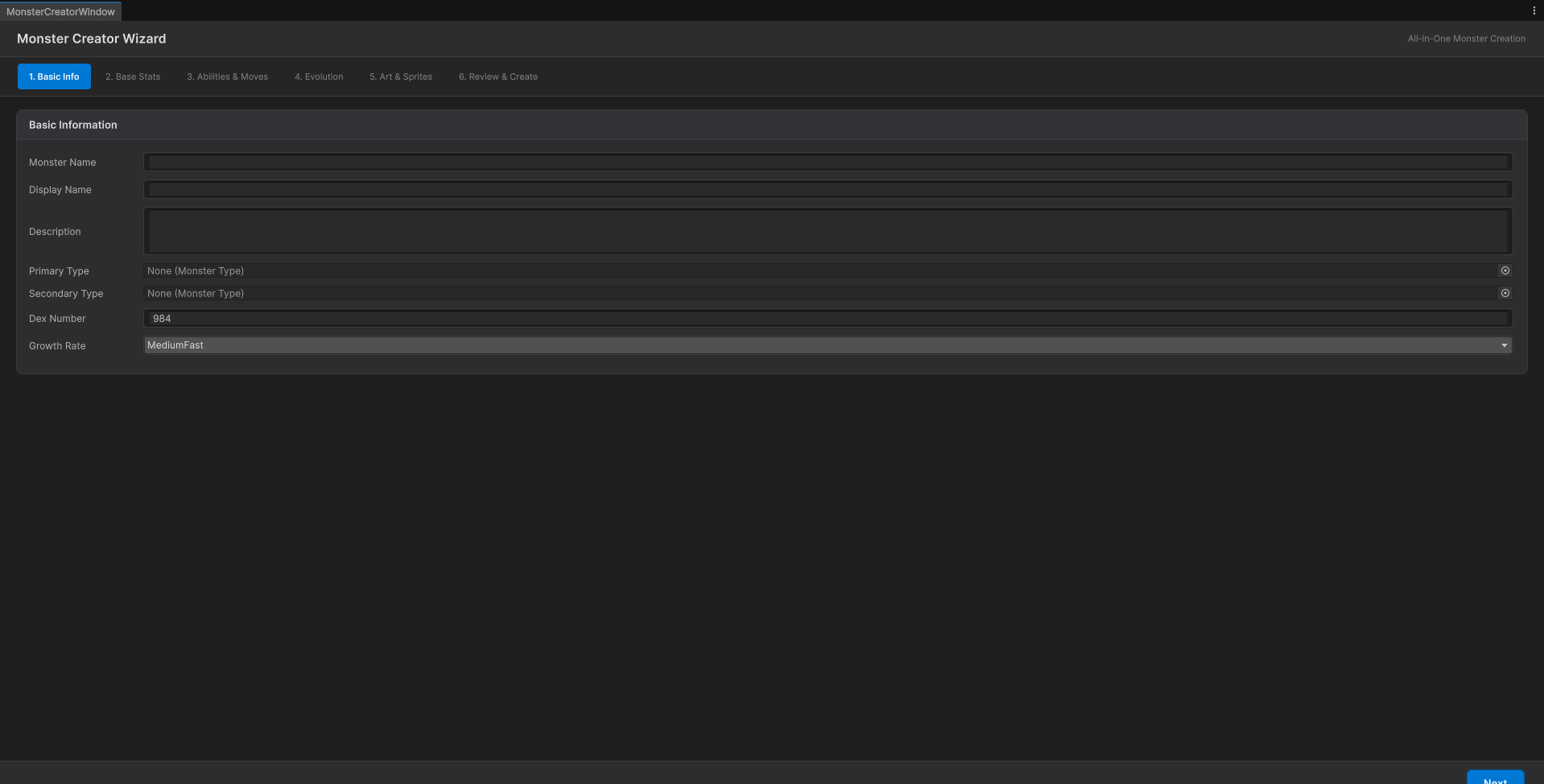
The wizard has six steps, listed along the top: 1. Basic Info, 2. Base Stats, 3. Abilities & Moves, 4. Evolution, 5. Art & Sprites and 6. Review & Create. Move with Back and Next, or click a step directly. Nothing is written to disk until the last step, so you can back out of a species you started by mistake without leaving an orphan asset behind.
Step 1: Basic Info
| Field | Description | Example |
|---|---|---|
| Monster Name | The asset name of the species. Also fills the display name. | Flameleon |
| Display Name | The name shown in-game (defaults to the monster name). | Flameleon |
| Description | Dex entry text. | A small lizard whose tail burns brighter when excited. |
| Primary Type | The main type (required). | Fire |
| Secondary Type | Optional second type for dual-typing. | Flying |
| Dex Number | Unique number in your database. | 152 |
| Growth Rate | The experience curve: Erratic, Fast, MediumFast, MediumSlow, Slow or Fluctuating. | MediumFast |
The monsters of the MIT Licensed Demo (a separate download) already occupy the low dex numbers. Start your custom monsters above the highest number in your database to avoid conflicts. You can also use a completely separate numbering scheme if you are building an original game.
Types determine damage effectiveness in battle. You can view and customize the full type chart with the Type Chart Editor (OpenMon Hub → Database tab → Type Chart Editor).
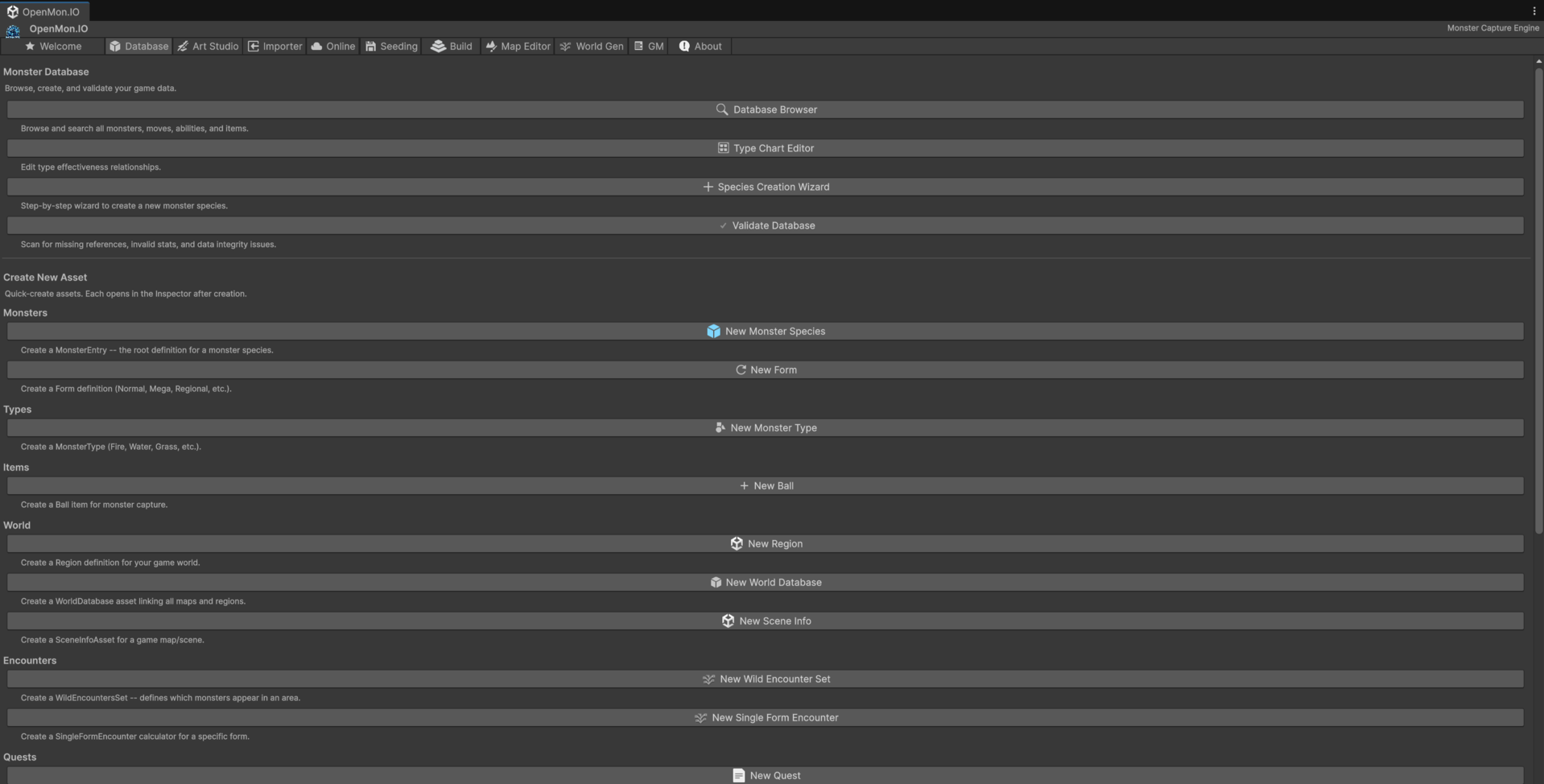
That tab is where the rest of this guide happens. The top half inspects and validates what exists; the bottom half creates one asset at a time and opens it in the Inspector.
Step 2: Base Stats
Set the six base stats (each from 1 to 255):
| Stat | Description | Typical Range |
|---|---|---|
| HP | Hit points | 30-120 |
| Attack | Physical attack power | 30-130 |
| Defense | Physical defense | 30-130 |
| Sp. Attack | Special attack power | 30-130 |
| Sp. Defense | Special defense | 30-130 |
| Speed | Turn order priority | 30-130 |
The Base Stat Total (BST) is shown under the bars. Six presets fill all stats at once so you start from a sensible shape and then adjust:
| Preset | HP / Atk / Def / SpA / SpD / Spe |
|---|---|
| Balanced | 80 / 80 / 80 / 80 / 80 / 80 |
| Physical Attacker | 70 / 120 / 70 / 40 / 60 / 90 |
| Special Attacker | 70 / 40 / 60 / 120 / 70 / 90 |
| Tank | 100 / 60 / 110 / 60 / 110 / 40 |
| Glass Cannon | 50 / 130 / 40 / 130 / 40 / 110 |
| Speedy | 60 / 80 / 50 / 80 / 50 / 130 |
For reference when tuning the BST:
- Early-game monsters: BST around 300-350
- Mid-game monsters: BST around 400-480
- Fully evolved monsters: BST around 500-540
- Legendary monsters: BST around 580-680
Step 3: Abilities & Moves
Abilities
- Ability 1 -- The default ability.
- Ability 2 -- An alternative ability some specimens can have.
- Hidden Ability -- A rare ability obtainable through special means.
Moves
- Level-Up Moves -- Click + Add Level-Up Move and pick a level and a move:
Level 1: Tackle,Level 7: Ember. The wizard sorts them by level when it writes the species. - TM/HM Compatibility -- Moves the species can learn from items (+ Add TM/HM Move).
- Egg Moves -- Moves inherited through breeding (+ Add Egg Move).
The MIT Licensed Demo (a separate download) brings 640+ moves. You can browse every move in the Database Browser (OpenMon Hub → Database tab → Database Browser) or create new ones as Move ScriptableObjects.
Step 4: Evolution
Click + Add Evolution Branch for each way the monster can evolve:
- Select the evolution Type from the dropdown. It offers the common ones -- ByLevel, ByItem, ByFriendship, ByTrade, ByLevelAtSpecificTime, ByFriendshipAtSpecificTime, ByLevelWithSceneTag, OnItemUse, OnLevelUpHoldingItem, WhenTraded, WhenTradedHoldingItem, ByFriendshipWithMoveOfType, ByCriticalHitCounter, ByUsingMoveXTimes and ByEvolutionCounter -- and the wizard shows the Level, Item or Friendship field the chosen type needs.
- Set Evolves Into to the target species.
MCE supports 37 evolution types in total. For any type the dropdown does not offer, leave the branch empty and add the evolution in the Inspector afterwards (see the Evolution Guide).
Step 5: Art & Sprites
Give the species its battle sprites and its icon: drop your own textures into Front Sprite, Back Sprite and Icon Sprite.
| Asset | What the wizard makes of it | Recommended Size |
|---|---|---|
| Front | A battle material (152-Flameleon-Front.mat) with the engine's battle sprite shader, for the opponent side | 96x96 px |
| Back | The same for the player side (152-Flameleon-Back.mat) | 96x96 px |
| Icon | The species icon in the party menu and the PC boxes | 32x32 px |
Use the Point (no filter) filter mode. The icon texture must also be imported as Texture Type Sprite, with Pixels Per Unit at your game's scale (typically 16 or 32); if it is not, the wizard leaves the icon empty and says so in the Console. The overworld sprites (the monster walking behind the player) are set afterwards in the MonsterEntry Inspector, under World Sprites.
Step 6: Review & Create
The last step shows a summary of everything you entered and checks it: the monster name and the primary type are required, and the create buttons stay disabled until both are set.
- Check the Output Path (default
Assets/OpenMon/Core/Data/Monsters; ... browses for another folder). - Press Create Monster to write the assets, or Create & Add to Database to write them and register the species in the monster database in one go.
- The wizard creates a folder named after the dex number and the species (for example
152-Flameleon/) holding theForm-Normalform and theMonsterEntryScriptableObject. - Open the Database Browser (OpenMon Hub → Database tab → Database Browser) and search for your monster to verify it appears.
- Open the MonsterDex in play mode to see your monster's dex entry.
Testing Your Monster
To see your monster in action:
- Wild Encounter -- Add your monster to a
WildEncountersSetand assign that set to the encounter type you want in the map'sSceneInfoasset. Walk onto anEncounterTileof that type and you will eventually find it (see Wild Encounters). - Direct Spawn -- Select any
Rosterasset (they are ScriptableObjects, e.g. the player's roster) and use its Add Monster Inspector button to add your species directly. - Trainer Party -- Add your monster to a trainer's
Rosterasset the same way so it appears in a scripted battle.
The MonsterEntry ScriptableObject
Under the hood, the wizard creates a MonsterEntry ScriptableObject. If you prefer working directly with SOs instead of the wizard, you can create one manually:
Assets > Create > MCE > Monster Database > Monster
A MonsterEntry is a species-level container. The actual stat, type, and visual data lives in per-form entries:
| Level | Class | Contains |
|---|---|---|
| Species | MonsterEntry | DexNumber, AvailableForms, indexed form data |
| Per Form | DataByFormEntry | Types, stats, abilities, sprites, evolutions |
// MonsterEntry  --  species-level
public class MonsterEntry : ScriptableObject
{
    public uint DexNumber;
    public List<Form> AvailableForms;
    private List<DataByFormEntry> DataByForm;   // read through monsterEntry[form]
}

// DataByFormEntry  --  per-form data (abridged)
[Serializable]
public class DataByFormEntry
{
    public Form Form;
    public MonsterType FirstType;
    public MonsterType SecondType;
    public SerializableDictionary<Stat, byte> BaseStats;
    public List<Ability> Abilities;
    public List<Ability> HiddenAbilities;
    public byte CatchRate;
    public uint BaseExperience;
    public GrowthRate GrowthRate;
    public List<EvolutionData> Evolutions;
    // ... materials (Front, Back, shiny and male variants), icons, world sprites, breeding data
}
The DataByFormEntry structure allows a single species to have multiple forms (e.g., regional variants, Mega forms) with different stats, types, and sprites per form.
Next Steps
- Set Up Your First Battle -- Test your monster in combat.
- Types Guide -- Understand the type effectiveness system.
- Evolution Guide -- Configure complex evolution chains.