MCE Online Setup
MCE Online adds a complete MMORPG layer to the Monster Capture Engine using Nakama as the backend. This guide walks you through setting up the server, configuring the client, and testing connectivity.
Available in the Pro, Source and Studio editions.
What is Nakama?
Nakama is an open-source game server that provides:
- User authentication (email, device, SSO).
- Real-time multiplayer (WebSockets).
- Server-authoritative game logic (RPCs).
- Matchmaking with ELO-based ratings.
- Leaderboards, achievements, and live events.
- Cloud save and storage.
- Chat, friends, guilds.
MCE Online wraps Nakama with 25 specialized services for the monster capture genre.
They are the public service properties of NakamaManager — count them there if you want the number
for the version you have, rather than trusting a number in a document.
Prerequisites
- MCE Core installed and working.
- Docker Desktop (for local development) or a hosted Nakama instance.
- MCE Online imported into your project.
Step 1: Extract and Start the Nakama Server
Local Development (Docker)
Pro, Source and Studio include the Nakama server as Assets/OpenMon/Online/Server/mce-nakama-server.zip.
Extract it from Unity via the OpenMon Hub (Tools > MCE > OpenMon Hub) → Online tab → Extract Server Bundle.
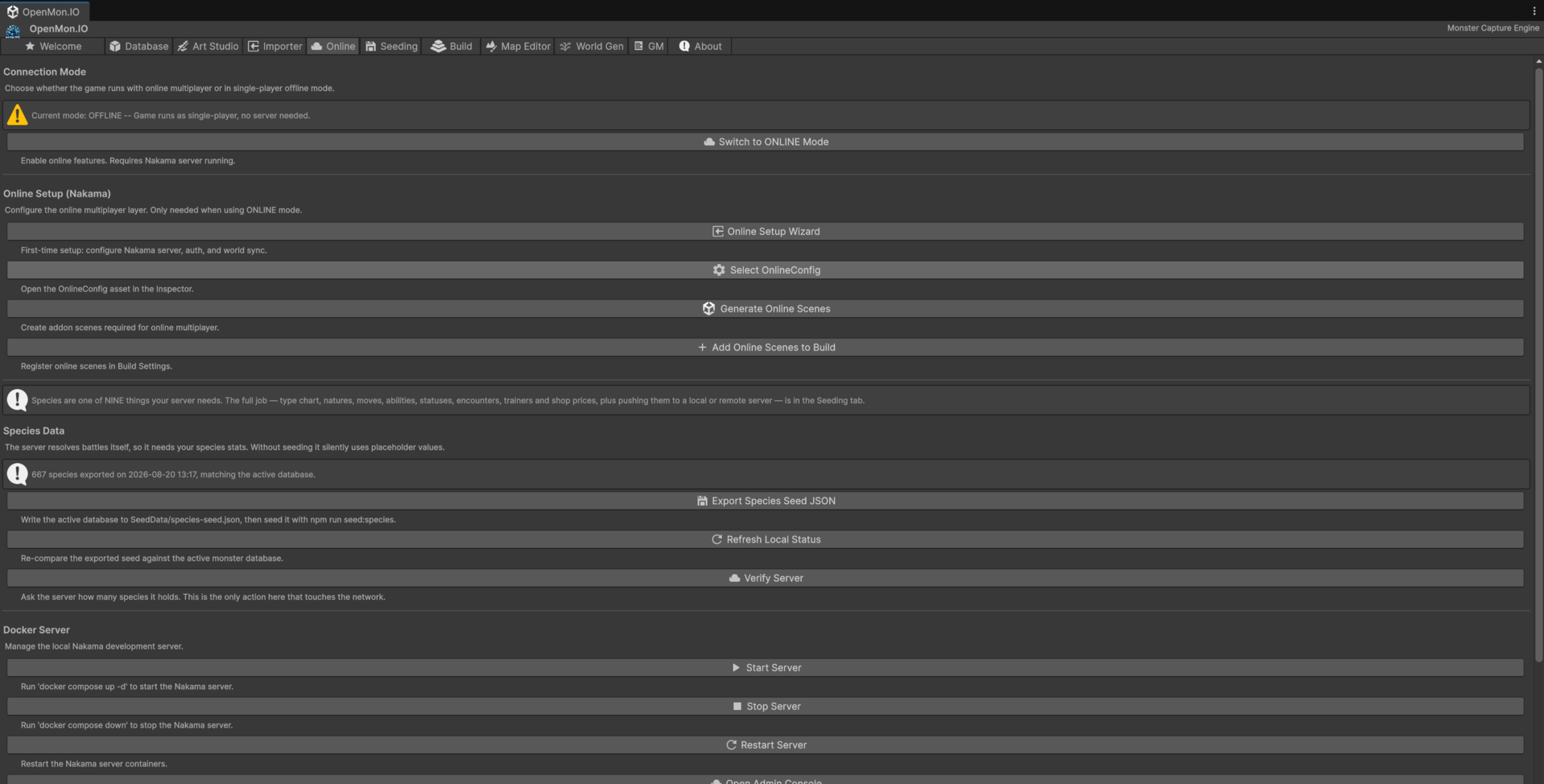
Everything in this guide lives on that one tab, in roughly the order you need it: connection mode at the top, first-time Nakama setup below it, then species seeding, then the Docker controls used here in Step 1.
Then start the extracted server folder:
cd path/to/OpenMon-Nakama-Server
docker compose up -d postgres nakama
This starts:
| Service | Host port | Environment variable |
|---|---|---|
| Nakama HTTP API | 7350 | MCE_NAKAMA_PORT |
| Nakama gRPC | 7349 | MCE_NAKAMA_GRPC_PORT |
| Nakama admin console | 7351 | MCE_NAKAMA_CONSOLE_PORT |
| PostgreSQL | 5432 | MCE_PG_PORT |
If those ports are already taken
They are Nakama's and Postgres's own defaults, which is exactly why they collide: anyone already running a Postgres, or a second Nakama, has them.
The failure is quiet, and that is the part worth knowing. Docker does not stop
with a clear message — the containers sit in Created and nothing explains why.
Every port is overridable through the environment variable in the table above:
MCE_PG_PORT=5433 MCE_NAKAMA_PORT=7360 docker compose up -d postgres nakama
Or set them from the editor. The UI Toolkit Hub — Tools → MCE → OpenMon Hub (UI Toolkit), the opt-in window, not the IMGUI one that opens by default — has a
port picker on its Online tab:
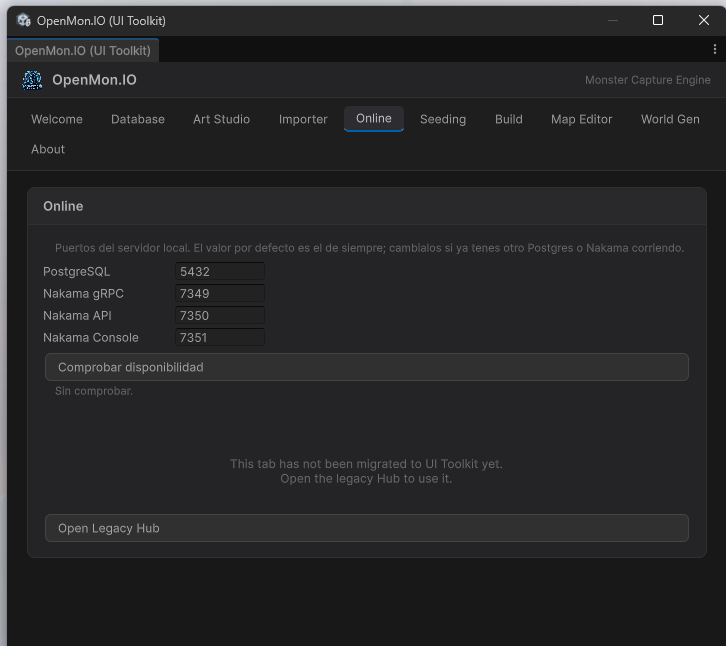
Press Comprobar disponibilidad and each port is checked by actually binding it. That distinction is the point: a port can look free in a listing and still refuse the bind, and the bind is precisely what Docker is about to attempt.
The port picker is the only part of that tab migrated to UI Toolkit so far. The rest of the Online tab still lives in the legacy Hub, and the window says so with a button across to it.
The compose file also defines an optional nakama-prodsim service that boots the
same modules without MCE_DEV_MODE, used by the dev-gate E2E tests to verify the
economy grant RPCs reject in production.
Access the Nakama admin console at: http://localhost:7351
Default admin credentials:
- Username:
admin - Password:
password
The default Docker configuration is for development only. For production, use a hosted Nakama instance (Heroic Cloud or self-hosted with proper security configuration).
Hosted (Heroic Cloud)
- Create an account at heroiclabs.com.
- Create a new Nakama project.
- Note the server URL and server key from the dashboard.
Step 2: Configure the Unity Client
OnlineConfig Asset
MCE Online uses an OnlineConfig ScriptableObject for connection settings:
- The client loads the asset named
OnlineConfigfrom aResourcesfolder (Assets/Resources/OnlineConfig.asset). Press Select OnlineConfig in the Hub's Online tab to open it. - If it does not exist, create it:
Assets > Create > MCE > Online > Configuration, namedOnlineConfigand placed in aResourcesfolder.
Configure the following fields:
| Field | Description | Local Default |
|---|---|---|
| Server Host | Nakama server hostname | 127.0.0.1 |
| Server Port | HTTP API port | 7350 (or whatever MCE_NAKAMA_PORT you chose) |
| Server Key | API key (from Nakama console) | defaultkey |
| Use SSL | Enable HTTPS/WSS | false (local), true (production) |
The OnlineConfig also contains settings for:
- Enable Online and Allow Offline Fallback: whether the game goes online and whether it may fall back to offline play when the server cannot be reached.
- Auto Reconnect and Max Reconnect Attempts: reconnection when the connection drops.
- Connection Timeout: how long a connection attempt may take (seconds).
- World sync: transport mode, area-of-interest radius (
AOIRadius), maximum visible players, position sync rate and channels. - Feature toggles: Housing, Spectator, Mod support, Server authority, Raid battles; the single-sign-on providers (Discord, Google, Apple); and limits such as friends, guild members, GTL listings and chat history.
Give the online UI its emoji font
The online UI uses emoji as its icon language — roughly eighty distinct glyphs across the
screens. TextMesh Pro's default font has none of them, and renders every one as ▯.
Open the Hub → Build tab → Setup Emoji Fallback (Online UI). It wires the bundled
Noto Emoji font (SIL OFL 1.1, in Assets/OpenMon/Online/UI/Fonts/) into TMP's fallback list.
The font and its TMP asset ship inside Assets/OpenMon/Online, so they arrive with the
package. The wiring does not: it lives in TMP Settings, under Assets/TextMesh Pro,
which is not part of any edition payload. So the asset arrives and the list that points at it
does not — one button closes the gap.
The same font asset is dynamic: it rasterises glyphs from the .ttf on demand, so
nothing is pre-baked and adding it costs no atlas build. That is also why the default font
cannot simply be extended — its atlas is static and cannot grow.
Enable the MCE_ONLINE Define
MCE Online requires the MCE_ONLINE scripting define symbol:
- Go to
Edit > Project Settings > Player > Other Settings > Scripting Define Symbols. - Add
MCE_ONLINEto the list. - Click Apply.
This enables all online-related code paths in the engine.
Step 3: Deploy Server-Side Code
MCE Online ships two runtimes inside the extracted server bundle: TypeScript modules for RPCs, battles, economy and social, and a Go plugin that runs the overworld match.
The layout of the bundle, abridged (the folders hold more files than listed):
OpenMon-Nakama-Server/
  README.md                  # Local setup + test commands
  docker-compose.yml         # Local Nakama + Postgres (+ optional prod-sim node)
  nakama/
    src/
      main.ts                # Entry point, RPC registration
      battle/
        pvp-engine.ts        # Server-authoritative PvP
        raid-engine.ts       # Battle Tower / Raids
      economy/
        gtl.ts               # Global Trade Link (GTL)
        gtl-engine.ts        # GTL matching engine
        gts.ts               # Global Trade Station (GTS)
      data/
        species.ts           # Species/stats lookup tables
        roster.ts            # Roster helpers
        shop.ts              # Dev-gated shop catalog
      social/
        trade.ts             # Direct player trading
      world/
        secretbase.ts        # Secret Base multiplayer (F3-A snapshot RPCs)
        playergym.ts         # Player Gym challenge snapshot (F2b RPCs)
        housing.ts           # Legacy furniture placement validation
        presence.ts          # Presence + AOI + anti-teleport movement guard
    go/                      # The overworld match, in Go
      main.go                # Nakama match adapter
      mundo.go               # Tick loop: presences, AOI, batch assembly
      aoi.go                 # Area of interest: grid + partial selection
      formato.go             # Compact batch format
      construir.mjs          # Rebuilds the plugin for another Nakama version
    tools/                   # Seed scripts: seed-species.js, seed-shop.js, ...
    data/
      modules/
        mundo.so             # The plugin, PREBUILT for Nakama 3.22.0 / linux-amd64
    tsconfig.json
    package.json
    jest.config.js           # Unit tests
    jest.e2e.config.js       # E2E tests (needs a running Nakama)
    CONTRACT.md              # RPC contract reference
world_map is not TypeScript. It ships prebuilt as nakama/data/modules/mundo.so and Nakama loads it
on startup, so there is nothing extra to do on Nakama 3.22.0 / linux-amd64 — the version this bundle
targets.
A Go plugin must be compiled against the exact Nakama version that loads it. On any other version the
prebuilt plugin will not load and world_join will fail. There is no TypeScript fallback, and that
is deliberate: the TypeScript world was 450 ms per tick against 12 ms for the Go one, with 253 606
positions dropped by full queues against zero. A silent fallback 37× slower is worse than a loud
failure — you would see a game that runs badly with no visible cause.
Rebuild it for your version with node go/construir.mjs (needs Docker). The Go sources ship with the
bundle for exactly this.
The source repository stores these files under Assets/OpenMon/Online/Server~/ so Unity ignores them. The commercial package ships them as mce-nakama-server.zip; extract that zip before running Docker or npm commands.
Deploy to Nakama
- Build the server modules:
cd path/to/OpenMon-Nakama-Server/nakama
npm install
npm run build
- The build compiles to
nakama/build/index.js(seeoutFileintsconfig.json). - Restart Nakama to load the modules.
The bundled docker-compose.yml already mounts the build output — no manual copy is needed:
volumes:
  - ./nakama/data:/nakama/data
  - ./nakama/build:/nakama/data/modules/build
Step 4: NakamaManager
The NakamaManager is the singleton that manages the connection:
- Created automatically at runtime via
[RuntimeInitializeOnLoadMethod]. - Owns the 25 service classes (Auth, World, Battle, Social, Economy, Housing, Persistence, LiveOps, Modding).
- Handles reconnection with exponential backoff.
- Routes all Nakama communication through a main thread queue (thread-safe).
You do not need to create or configure the NakamaManager manually. It reads from OnlineConfig and initializes itself.
Connection States
Disconnected → Connecting → Connected
                    ↓              ↓
                 Offline     Disconnected
                    ↑              ↑
              (reconnect)   (connection lost)
| State | Description |
|---|---|
| Disconnected | No connection, not attempting |
| Connecting | Attempting to connect or reconnect |
| Connected | Active connection, all services available |
| Offline | Failed to connect, operating in offline mode |
Step 5: Test Connectivity
Quick Test
- Start Nakama (Docker or hosted).
- Open your Unity project.
- Enter Play Mode.
- Check the Console for connection messages:
[MCE Online] Connected as <DisplayName> (<UserId>)
Connection Test Script
using UnityEngine;

public class OnlineConnectionTest : MonoBehaviour
{
    private void Start()
    {
        // NakamaManager auto-creates itself
        // Check connection state after a short delay
        Invoke(nameof(CheckConnection), 3f);
    }

    private void CheckConnection()
    {
        var nakama = NakamaManager.Instance;
        Debug.Log($"Connection State: {nakama.State}");
        Debug.Log($"Connected: {nakama.IsConnected}");
    }
}
Admin Console

The badge in the bottom-right corner is the connection indicator — round-trip latency and the server you are on. It is the fastest way to tell an online session from an offline one at a glance.
While connected, verify on the Nakama admin console (http://localhost:7351):
- Go to Users -- you should see the auto-created device account.
- Go to Runtime Modules -- you should see the loaded MCE server modules.
- Go to API Explorer -- test RPCs directly.
Online Services Overview
MCE Online groups its 25 service classes into these modules. Each one is a public property of NakamaManager (shown in parentheses):
| Module | Services |
|---|---|
| Auth | AuthService (Auth) -- email, device and SSO login; SessionManager (SessionMgr) -- token persistence and refresh |
| World | WorldSyncService (WorldSync) -- real-time movement and area-of-interest filtering; ChannelManager (Channels) -- world channels |
| Battle | BattleMatchmaker (Matchmaker), PvpBattleService (PvpBattle), SpectatorService (Spectator), RaidBattleService (Raids) |
| Social | ChatService (Chat), GuildService (Guilds), FriendService (Friends), TradeService (Trade) |
| Economy | GTLService (GTL), GtsService (Gts), WalletService (Wallet), ShopService (Shop), InventorySyncService (Inventory) |
| Housing | HousingService (Housing) -- Secret Base save/visit/invite; BaseSyncService (BaseSync) -- live co-presence inside a base; GymOnlineService (Gym) -- player gym challenge snapshot |
| Persistence | CloudSaveService (CloudSave) |
| LiveOps | EventService (Events), LeaderboardService (Leaderboards), AchievementService (Achievements) |
| Modding | ModLoader (Mods) |
Around them: NetworkedBattleManager (online battle orchestration), PlayerNetworkEntity and PlayerSpawnManager (remote players), AntiCheatManager, OnlineCommandBridge (bridges online actions to CommandGraph nodes such as Monster Gifts) and OnlineSceneBootstrapper (online scene lifecycle).
Each service is documented in its own guide in this section.
Troubleshooting
| Issue | Solution |
|---|---|
| "Connection refused" | Ensure Nakama is running (docker ps to check) |
| "Invalid server key" | Check OnlineConfig.ServerKey matches Nakama's config |
MCE_ONLINE errors | Ensure the scripting define symbol is set |
| Timeout on connect | Check firewall settings, verify server host/port |
| "Module not found" RPC errors | Deploy server-side TypeScript modules and restart Nakama |
| SSL errors in production | Ensure UseSSL = true and valid certificates |
Next Steps
A freshly deployed server does not know your species. It resolves battles with placeholder stats and never says so -- no error, no warning. Do Species Seeding next, before judging anything the server calculates.
- Species Seeding -- Give the server your real species data.
- Authentication -- Set up user accounts and login flows.
- World Sync -- Enable real-time multiplayer world.
- PvP Battles -- Server-authoritative online battles.
- Economy -- Trading, shops, and currency.
- World Options -- Set the rules your world plays by.
- GM Mode -- Operate and test your live server.