Set Up Your First Battle
This guide shows you how to configure an encounter zone, trigger a wild battle, and understand the battle flow. By the end, you will have a working battle that you can test in the editor.
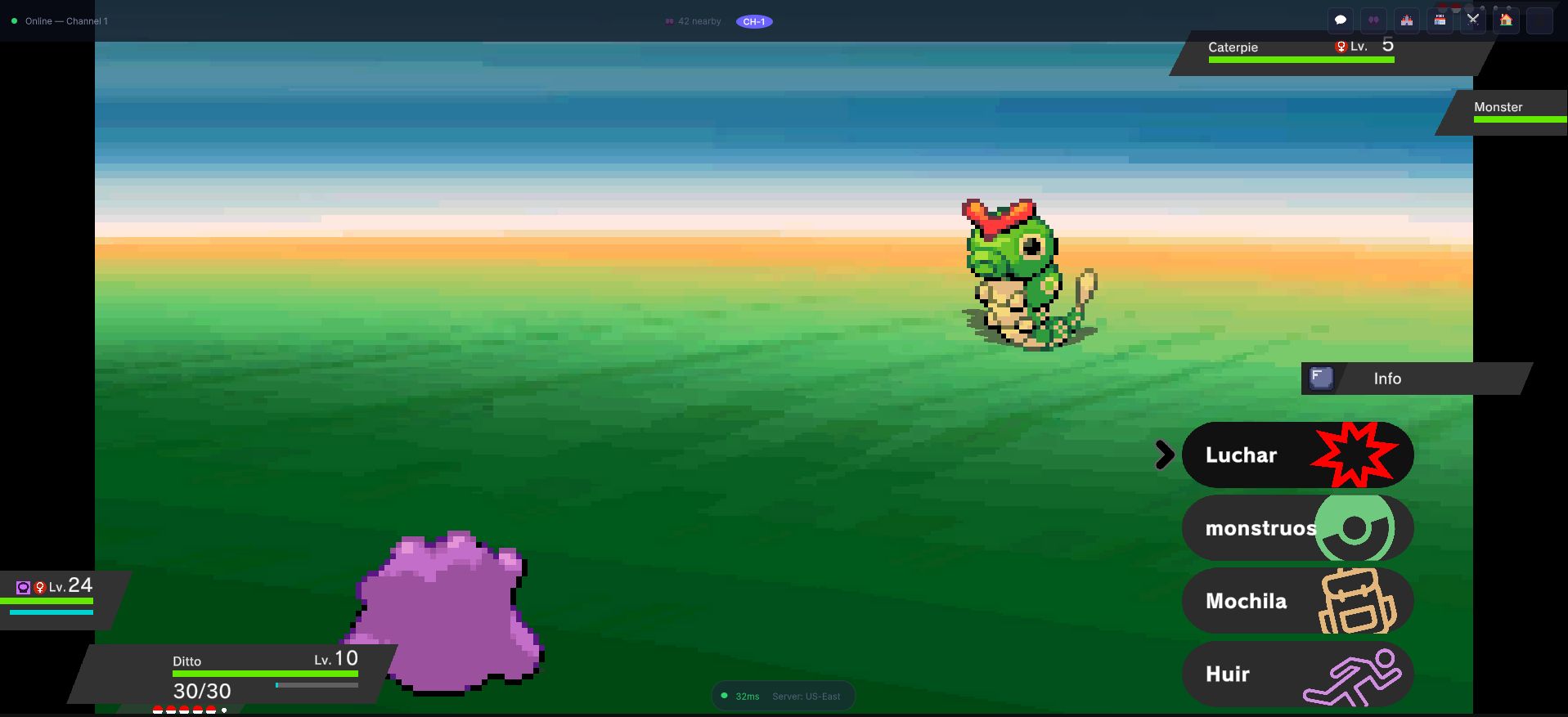
That is what you are building toward: a wild encounter that fires from a grass tile, with a four-action menu and a rival the encounter table chose.
Prerequisites
- MCE is installed and the setup wizard has been completed.
- You have at least one monster in your database (the demo project's or one you created).
- You have a scene with a player character and a grid-based tilemap, and a
SceneInfoasset for that map.
Step 1: Create an Encounter Zone
Wild battles are triggered by encounter tiles on your tilemap. An encounter tile is an ordinary tile whose prefab carries the EncounterTile component; the component has a single setting, Encounter Type, that says which kind of encounter the tile starts: Grass, Water, Surfing, Cave, FishingOldRod, FishingGoodRod, FishingSuperRod, Diving, RockSmash, HeadButt, BugContest or Other.
- Use an encounter tile prefab -- the engine ships ready-made ones, for example
Assets/OpenMon/Game/Prefabs/World/Water/Water/WaterEncounterTile.prefab-- or make your own: create a prefab, add theEncounterTilecomponent and pick its Encounter Type. - Make that prefab the GameObject of a tile asset and paint the tile on the tilemap layer where wild monsters should appear (typically your "Grass" layer).
Each step the player takes onto such a tile rolls against the encounter chance. In a scene whose SceneInfo is marked as a dungeon, every walked tile counts as a Cave encounter without needing painted tiles.
Step 2: Configure the Encounter Table
What lives in the grass is a WildEncountersSet ScriptableObject, and the map's SceneInfo decides which set answers to which encounter type. Create the set:
Assets > Create > MCE > Battle > Encounters > WildEncountersSet(or the New Wild Encounter Set button in the Hub's Database tab).- Name it something descriptive, like
Route1_GrassEncounters. - Fill its three lists:
| List | Meaning |
|---|---|
| Base Encounters | Monsters that always show up |
| Encounters Per Moment | Extra monsters for a moment of the day: Night, Dawn, Day or Dusk |
| Encounters Per Weather | Extra monsters under a given out-of-battle weather |
Each entry is a WildEncounter:
| Field | Description |
|---|---|
| Monster | The MonsterEntry that can appear |
| Form Calculator | The asset that picks the form (SingleFormEncounter always returns one form) |
| Min Level / Max Level | Level range of the wild monster (1-100; the max can never go below the min) |
| Weight | Relative chance of this entry (higher = more common) |
For example:
| Monster | Level Range | Weight |
|---|---|---|
| Flameleon | 3-5 | 40 |
| Leaflet | 3-5 | 40 |
| Sparkit | 4-6 | 20 |
- Open your map's
SceneInfoasset and, in its Encounters group, add the entry for the encounter type (for exampleGrass) and assign yourWildEncountersSet. Without that entry the map has no wild monsters for that type.
Step 3: Set Up the Battle Scene
MCE uses a dedicated battle scene that loads additively over the overworld when a battle starts. You need:
- A
BattleLauncherasset. It is a ScriptableObject (Create > MCE > Battle > Launcher) bound through theBattleLauncherInstaller, not a component of your scene. Its Battle Scene field points to the battle scene, and it holds the battle music lists. The project's setup already includes one. - The battle scene in your build settings. The default one (
Battle.unity, inAssets/OpenMon/Core/Game/Scenes/) is included with MCE.
The BattleLauncher handles the transition:
- Builds a
BattleParametersobject (battle type, enemy type, rosters, characters, scenario, weather). - Loads the battle scene additively.
- Hands the parameters to the
BattleManagerin that scene. - Unloads the scene and returns to the overworld when the battle ends.
BattleManager Components
The BattleManager is the heart of the battle system. In the battle scene, you will find a GameObject with the BattleManager component. It requires fifteen modules next to it, each a MonoBehaviour on the same GameObject, plus the BattleStateMachine:
| Module | Purpose |
|---|---|
| BattleManagerBattlersModule | Battler lookup on both sides, sprites, forms, running away |
| BattleManagerHealthModule | HP changes, fainting detection and processing |
| BattleManagerMovesModule | Move execution, accuracy |
| BattleManagerItemsModule | In-battle item usage |
| BattleManagerCaptureModule | Wild monster capture mechanics |
| BattleManagerAIModule | Enemy decision-making |
| BattleManagerAnimationModule | Battle intro and flow animations |
| BattleManagerAudioModule | Battle music and sound effects |
| BattleManagerStatusesModule | Status conditions (burn, poison, sleep, etc.) |
| BattleManagerBattlerStatsModule | Stat stages and modifications |
| BattleManagerBattlerSwitchModule | Sending battlers in and out |
| BattleManagerRostersModule | Party management during battle |
| BattleManagerScenariosModule | Weather, terrain and scenario setup |
| BattleManagerMegaModule | Mega Evolution |
| BattleManagerCharactersModule | Trainer characters |
You do not need to configure these individually. Each module reaches its siblings through the BattleManager, and the rest of the wiring comes from Zenject dependency injection.
Step 4: Know the Battle Loop
The BattleStateMachine drives the battle as one loop that repeats every turn until the battle is over:
Update fought battlers → Request actions (player menu / AI) →
  → Determine action order → Perform actions →
  → End-of-turn callbacks and status countdown →
  → Check and process fainted battlers → [next turn]
  ... until IsBattleOver → end animation, prize/defeat money, end callbacks
The loop is part of the battle prefab; you do not configure it. To understand or change it, see Battle Internals.
Step 5: Test the Battle
-
Make sure your overworld scene has:
- A PlayerCharacter with a roster containing at least one monster.
- Encounter tiles painted on a tilemap.
- A
SceneInfowhose Encounters entry for that type points to a configuredWildEncountersSet.
-
Press Play in the editor.
-
Walk your character onto the encounter tiles.
-
After a few steps (determined by the encounter chance) a battle will trigger.
The chance per step comes from the TileEncounterChance table of your MCESettings asset (one value per encounter type), unless the map's SceneInfo defines its own chance for that type. To test battles immediately without walking around, set the chance of the type you are testing to 1 (100%).
Understanding the Battle Flow
When a battle starts, this is what happens under the hood:
- The player steps onto an
EncounterTile; the step rolls against the chance for that Encounter Type. - The matching
WildEncountersSetof the map gives the possible encounters for the current moment of the day and weather; one is picked by weight and a level is drawn from its range. - A
BattleParametersobject is created with the wild monster's data and theBattleLauncherloads the battle scene additively. BattleManagerinitializes all modules.- The battle introduction plays.
- The player is presented with action choices: Fight, Bag, Monster, Run.
- Actions execute in priority and speed order.
- The loop continues until one side faints or the player runs/captures.
BattleResultParametersare sent back to the overworld (who won, the captured monster, respawn flag).- The battle scene unloads and the overworld resumes.
Battle Types
Two enums describe what a battle is:
| Enum | Values | Meaning |
|---|---|---|
BattleType | SingleBattle, DoubleBattle | One monster per side, or two |
EnemyType | Wild, Trainer | A wild monster (can be captured) or an NPC trainer (cannot be captured, pays prize money) |
Both are carried in BattleParameters and exposed on the BattleManager.
Listening to Battle Events
Respond to battle events without coupling your gameplay code to internals. The battle launcher is bound in dependency injection, so any script can subscribe to it:
using OpenMon.MCE.Battle;

public class MyBattleTracker : MonoBehaviour
{
    [Inject] private IBattleLauncher battleLauncher;

    private void OnEnable()
    {
        battleLauncher.SubscribeToBattleLaunched(HandleBattleLaunched);
        battleLauncher.SubscribeToBattleEnded(HandleBattleEnded);
    }

    private void OnDisable()
    {
        battleLauncher.UnsubscribeFromBattleLaunched(HandleBattleLaunched);
        battleLauncher.UnsubscribeFromBattleEnded(HandleBattleEnded);
    }

    private void HandleBattleLaunched()
    {
        Debug.Log("A battle has been launched!");
    }

    private void HandleBattleEnded(BattleResultParameters result)
    {
        Debug.Log($"Battle ended. Player won: {result.PlayerWon}");
    }
}
battleLauncher.BattleInProgress tells you whether a battle is running. The SDK also offers IBattleSystem (engine.Battle) with OnBattleStarted and OnBattleEnded, but its engine hooks are not connected yet; see the Public API Guide and IBattleSystem.
Troubleshooting
| Issue | Solution |
|---|---|
| Battle does not trigger | Check that the tile has an EncounterTile with the right Encounter Type, that the map's SceneInfo has a WildEncountersSet for that type, and that TileEncounterChance has a value for it (a missing type counts as 0 and logs a warning once) |
| Black screen after encounter | Verify the battle scene is in your Build Settings scene list and set on the BattleLauncher |
| Monster appears at level 0 | Ensure Min Level and Max Level are set in the encounter entry |
| No battle music | Check that the BattleLauncher has music in its wild/trainer battle lists and that BattleManagerAudioModule has its audio assigned |
| Crashes on battle start | Open the OpenMon Hub → Database tab → Validate Database to check for missing database references |
Next Steps
- Battle System Deep Dive -- Learn the full battle architecture.
- Move System -- Understand the move system.
- Battle AI -- Configure and customize enemy AI.