Move System
640+ moves ship with the MIT Licensed Demo (separate download), covering Physical, Special, and Status categories. This guide explains how moves work, how to browse and assign them, and how to create new ones.
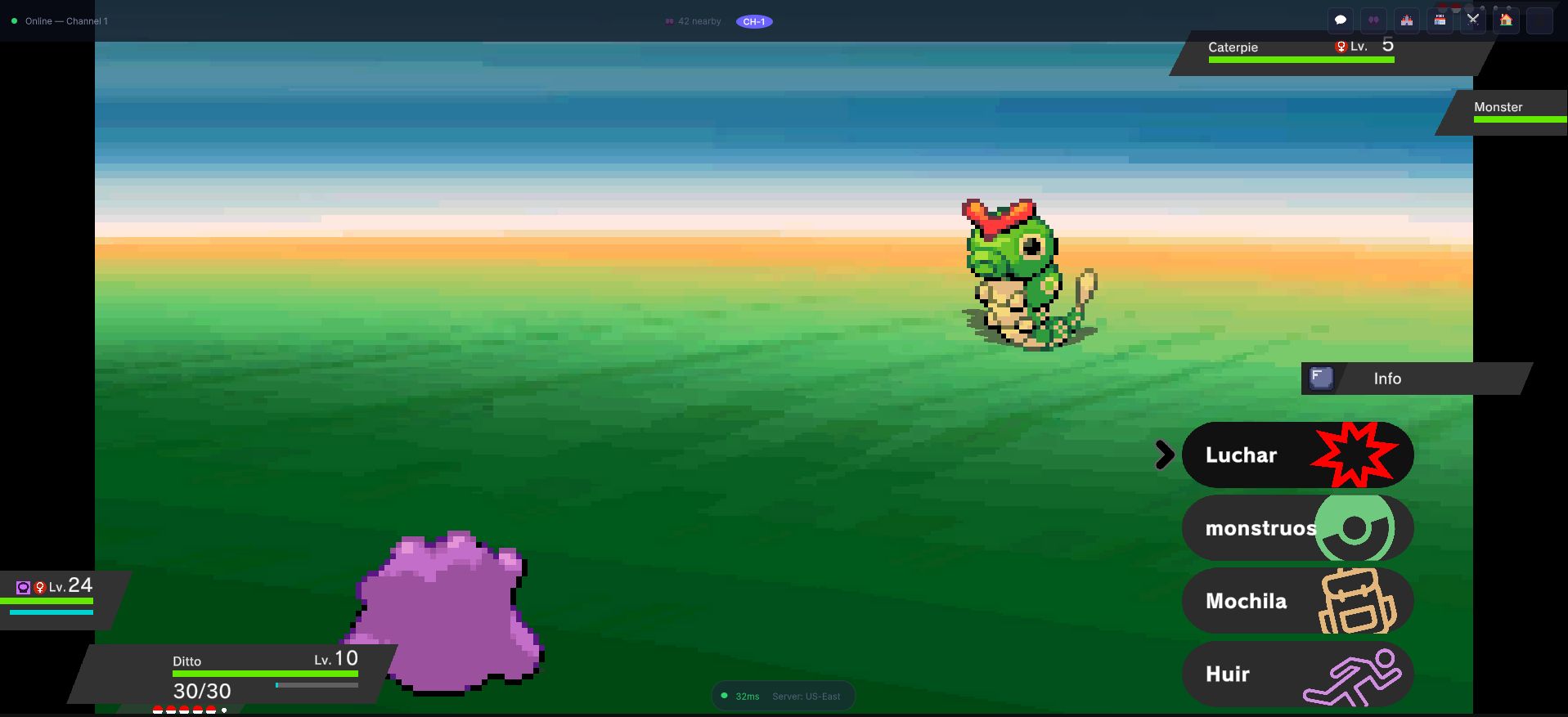
Every move the player can pick is an entry in a learnset, and every one of them resolves through the same pipeline described below — power, accuracy, type effectiveness, then effects.
Move Categories
Every move belongs to one of three categories:
| Category | Description | Uses Stat |
|---|---|---|
| Physical | Makes physical contact with the target | Attack vs Defense |
| Special | Ranged or elemental attack | Sp. Attack vs Sp. Defense |
| Status | Does not deal direct damage; applies effects | N/A |
The category determines which stats are used in the damage formula. Physical moves use the attacker's Attack against the defender's Defense; Special moves use Special Attack against Special Defense.
Move Properties
Every move is a Move ScriptableObject (an abstract base; each move is a concrete subclass, see Creating a New Move). The Inspector groups its fields:
| Group | Field | Description |
|---|---|---|
| Base Stats | Move Type | The move's type (Electric, Fire, etc.) |
| Base Stats | Move Category | Physical, Special, or Status |
| Base Stats | Base Power Points / Max Power Points | PP -- how many times the move can be used before resting |
| Base Stats | Priority | Turn order priority (-7 to +5). Higher priority moves go first regardless of Speed |
| Base Stats | Makes Contact | Whether the move makes physical contact (relevant for abilities like Static) |
| Base Stats | Affected By... | Whether Protect, Magic Coat, Snatch, Mirror Move or King's Rock apply |
| Accuracy | Infinite Accuracy / Base Accuracy | Either the move never misses, or its hit chance |
| Targeting | Move Possible Targets | Who the move can hit (single opponent, all opponents, self, ally, all, etc.) |
| Multi Hit | Is Multi Hit | Whether it hits more than once per use |
Damaging moves (DamageMove and its subclasses) add Power, a critical-stage modifier and, depending on the subclass, a secondary effect such as a status with its chance (StatusChanceDamageMove). The animation, sound and prefabs a move plays live in its own Animation group.
Damage Formula
MCE uses the Gen V+ damage formula, implemented in DamageMath:
Base = ((2 * Level / 5 + 2) * Power * A / D) / 50 + 2
Where:
- Level = attacker's level
- Power = move's base power, adjusted for the situation
- A / D = attacker's effective Attack (or Sp. Attack) over defender's effective Defense (or Sp. Defense), including stat stages
This base damage is then multiplied by a chain of factors:
Final = Base * Targets * Weather * Terrain * Critical * Random * STAB * TypeEffectiveness * Status * Additional
| Factor | Value |
|---|---|
| Targets | 0.75 when the move hits more than one target |
| Weather | From the active weather for the move (e.g. rain boosts Water, weakens Fire) |
| Terrain | From the active terrain, if any |
| Critical | 1.5x (and a critical hit counts every stat stage below 0 as 0) |
| Random | A random factor between 0.85 and 1.00 |
| STAB | 1.5x if the move type matches an attacker type (abilities can change it: Adaptability makes it 2x) |
| Type Effectiveness | Product over the defender's types: 0x, 0.25x, 0.5x, 1x, 2x, or 4x |
| Status | The attacker's status condition scales physical damage: a burn halves it (0.5x) |
| Additional | Everything abilities, held items, side statuses and allies add, one by one |
The result is rounded and is never less than 1.
Browsing Moves
Use the Database Browser to explore all available moves:
Open the OpenMon Hub (Tools > MCE > OpenMon Hub) → Database tab → Database Browser
The browser lets you:
- Search moves by name.
- Filter by type, category, or power range.
- View all properties of a selected move.
- Jump to the move's ScriptableObject for editing.
Assigning Moves to Monsters
Moves are assigned to monsters through the MonsterEntry ScriptableObject:
Level-Up Moves
Each entry in the level-up moveset pairs a level with a move:
Level 1:  Tackle
Level 1:  Growl
Level 7:  Ember
Level 10: Smokescreen
Level 16: Fire Fang
Level 22: Flame Burst
Level 30: Flamethrower
A monster learns these moves automatically when reaching the specified level. If a monster is caught or generated at a level higher than some of its level-up moves, it will know the most recent 4 moves from its level-up list.
TM/HM Compatibility
A list of Move references indicating which TM and HM moves the species can learn. The player uses TM/HM items from the bag to teach these moves.
Egg Moves
Moves that can only be obtained through breeding. The offspring inherits egg moves from its parents if the parents know those moves.
Tutor Moves
Moves taught by NPCs in-game. Build the NPC with the MoveTutor CommandGraph node (it teaches a chosen move to a chosen monster) and, if you want, condition it with IfMonsterCanLearnMove; RemindPreviouslyLearntMoves is the "move reminder".
Creating a New Move
Every move is a concrete Move subclass with its own asset menu entry under Assets > Create > MCE > Monster Database > Moves > <Type> > <Move>. To create a new move, make an asset of the move class whose behavior matches what you want and reconfigure its stats:
- Right-click in your Project window and pick the matching move class (e.g.,
Create > MCE > Monster Database > Moves > Electric > ThunderFangfor a contact damage move with a paralysis chance, or... > Normal > Tacklefor plain contact damage). - Name the asset (e.g.,
ThunderClaw). - Configure all fields in the Inspector:
Name: Thunder Claw
Type: Electric
Category: Physical
Power: 75
Accuracy: 95
PP: 15
Priority: 0
Contact: true
Effect: May paralyze target
Effect Chance: 30
- Assign it to monsters' level-up, TM, egg, or tutor movelists.
Follow a consistent naming convention. The demo's moves use natural English names. Keep custom move names concise (1-3 words) and evocative of their type and effect.
Move Effects
Many moves have secondary effects beyond dealing damage:
Stat Changes
Move: Swords Dance
Category: Status
Effect: Raises user's Attack by 2 stages
Status Conditions
Move: Thunder Wave
Category: Status
Effect: Paralyzes the target
Accuracy: 90
Multi-Hit Moves
Some moves hit 2-5 times per turn (e.g., Fury Attack). The number of hits is rolled randomly with weighted distribution.
Recoil Moves
The attacker takes a percentage of the damage dealt as recoil (e.g., Double-Edge deals 33% recoil).
Priority Moves
Moves with positive priority always go first in a turn:
| Priority | Examples |
|---|---|
| +5 | Helping Hand |
| +3 | Fake Out |
| +2 | Extreme Speed |
| +1 | Quick Attack, Aqua Jet, Mach Punch |
| 0 | Most moves |
| -1 | Vital Throw |
| -3 | Focus Punch |
| -5 | Counter, Mirror Coat |
| -6 | Whirlwind, Roar |
| -7 | Trick Room |
Weather Moves
Some moves change the battlefield weather (Rain Dance, Sunny Day, Sandstorm, Hail), which affects damage multipliers and enables certain abilities.
Move Slots
Each monster can know up to 4 moves at a time. When learning a 5th move, the player must choose which existing move to replace. This is handled automatically by the UI -- the move learning screen appears and lets the player pick.
The MoveSlot struct tracks:
- The
Movereference. MaxPP(it starts at the move'sBasePowerPoints) andCurrentPP, the PP remaining.
PP Management
- Each move has a base PP value.
- PP decreases by 1 each time the move is used.
- When PP reaches 0, the move cannot be used until restored.
- PP is restored by healing the party, using PP-restoring items (Ether, Elixir), or specific abilities.
- If no move can be used, the monster uses the move set as
NoPPMovein theMCESettingsasset (Struggle).
Move Animations
Each move class plays its own animation during battle. The move's PlayAnimation method runs the effect, and the sound and the animation prefabs it uses are fields in the move asset's Animation group (for example ThunderFang exposes a sound, a bite animation prefab and a paralysis animation prefab). To restyle a move, assign different prefabs and audio to those fields; to change what it plays, change the move class (Source and Studio editions).
Best Practices
- Balance power vs accuracy vs PP. High-power moves should have lower accuracy or PP to create meaningful choices.
- Give every type a range of moves. Each type should have Physical, Special, and Status options.
- Consider move distribution across species. Not every monster should learn the best moves.
- Test effect chances. A 100% flinch move with high speed would be extremely overpowered.
- Use the Database Browser to check for gaps in your move coverage before release.