Save System
MCE uses a JSON-based save system with named saves, atomic writes, autosave rotation, versioning and extensibility. The save system persists the player's entire game state -- roster, inventory, position, badges, quest progress, and game variables.
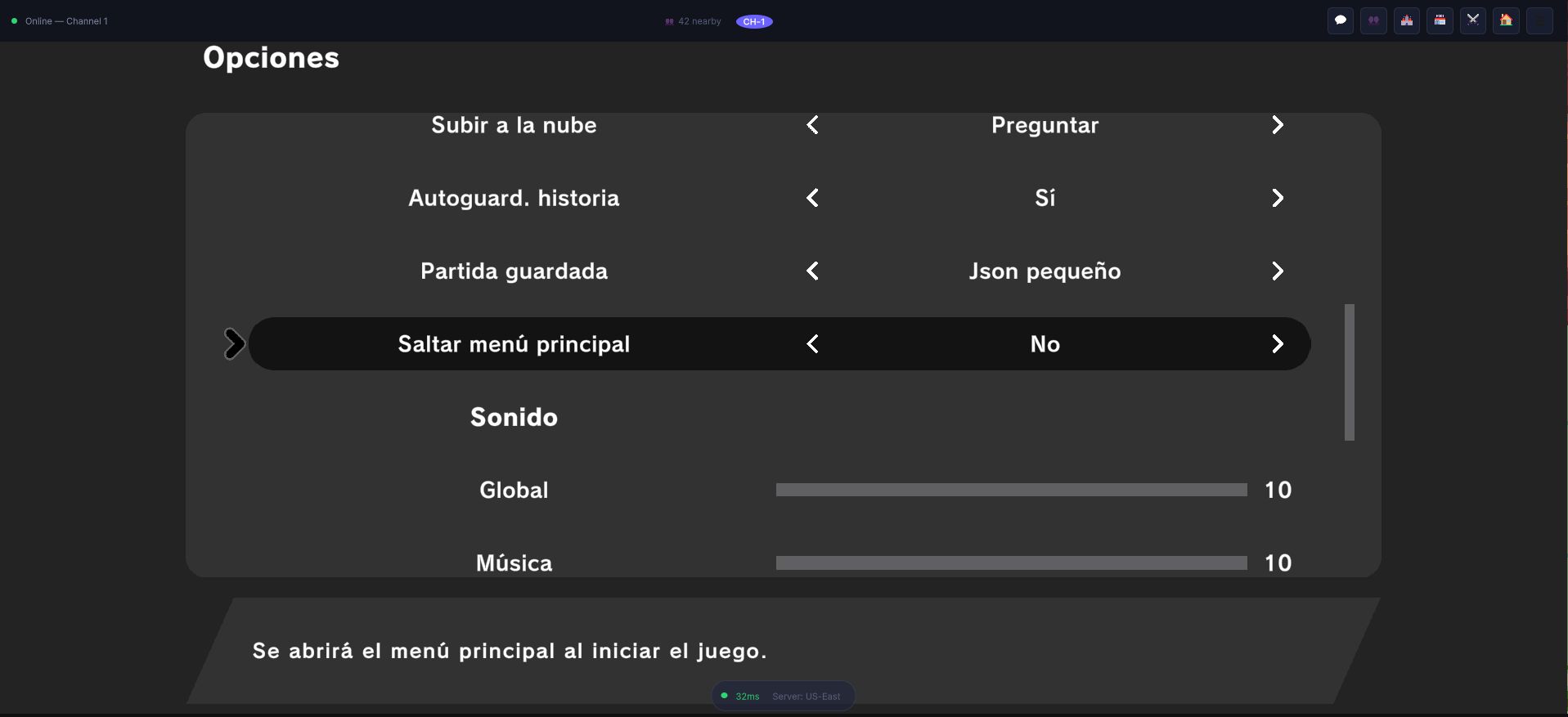
Three of the switches on that screen belong to this system: Partida guardada picks the serialisation format, Autoguard. historia decides whether story beats write on their own, and Subir a la nube is the one that asks before it leaves the machine.
Architecture
The save system is composed of several components:
| Component | Purpose |
|---|---|
SavegameManager | Orchestrates save/load operations (a ScriptableObject bound through the SavegameInstaller) |
SavableObject | Base class (a ScriptableObject) for any object that persists data: SaveToText, LoadFromText and ResetSave |
MCESavesSerializer | JSON serializer used for every saved text |
GameVariables | Store of named variables: booleans, integers, floats and strings |
GameVariableHolder | A SavableObject that owns a GameVariables store (GlobalGameData and every SceneInfoAsset are holders) |
GameVariableReference | Inspector reference to one variable, used by CommandGraph nodes |
Migrations/ | ISaveMigration, SaveMigrationPipeline and SaveFormatVersions: the save versioning |
What Gets Saved
SavegameManager.SavegameObjects is the list of savable objects that go into every save. The engine's own are:
| Object | Holds |
|---|---|
GlobalGameData (saved as SavableGlobalGameData) | Player position, money, earned badges, game variables, the format version stamp, secret base and player gym |
Roster | The party monsters with their full state (species, level, IVs, EVs, nature, moves, PP, HP, status, friendship...) |
MonsterStorage | Boxed monsters |
Bag | Items and quantities |
Dex | Seen/caught tracking per species |
QuestManager | Active quests, completed objectives, rewards claimed |
CharacterData | The player character |
TimeManager | The time of day |
Nursery | The breeding nursery |
SceneInfoAsset | Each map's own game variables |
Save Files
A save is a folder, not a single file. Saves live in Saves/ under Unity's Application.persistentDataPath:
| Platform | persistentDataPath |
|---|---|
| Windows | %USERPROFILE%/AppData/LocalLow/<CompanyName>/<ProductName>/ |
| macOS | ~/Library/Application Support/<CompanyName>/<ProductName>/ |
| Linux | ~/.config/unity3d/<CompanyName>/<ProductName>/ |
| Android | Internal storage (app-private) |
| iOS | App sandbox |
<persistentDataPath>/Saves/
  2026-10-10-18-30-02/        a manual save, named with the current date
    GlobalGameData.sav        one .sav per savable object
    Roster.sav
    ...
    Manifest.txt              the list of files a COMPLETE save must contain
  Autosave/
  OlderAutosave/
Saves are written to be crash-safe:
- Every file is written atomically (to a temporary file, then replaced).
- The whole save is first written to a
<name>.stagingfolder and only swapped into place after every file and the manifest were written. An interrupted save never leaves a half-written mix of old and new state. - On load, a file listed in the manifest that is missing means the save was interrupted, so it is refused instead of loading a partial save.
Saving and Loading
The player saves from the pause menu (the Exit entry offers to save, and the save key of the menu asks and writes a save named with the current date) and loads from the main menu (Continue loads the latest save, Load lists them all). When the game runs online (MCE Online), the progress is kept by the server and the local save is not written.
From code, through the SavegameManager (Source and Studio editions):
// A new save named with the current date
yield return savegameManager.SaveGameWithCurrentDate(playerCharacter);

// Rotate the autosave
yield return savegameManager.Autosave(playerCharacter);

// Load by name, or the most recent one
yield return savegameManager.LoadGame(saveName);
yield return savegameManager.LoadLastSavegame();
SavegameManager.GetAllSavegames(out list) and AreThereSavegames() tell you what is on disk. Test save states (SaveStates) live next to the player's saves under their own prefix and are hidden from every list the player can see.
engine.SaveSystem (ISaveSystem) exposes Save(slot), Load(slot), HasSaveData(slot), DeleteSave(slot), OnSaved and OnLoaded, but in the current engine it is not connected to SavegameManager: nothing handles its save and load requests, and HasSaveData looks for a slot{N}.sav file in persistentDataPath that the engine does not write. Use the SavegameManager (Source and Studio editions) or the in-game menus for real saves. See ISaveSystem.
Autosave
Two options in the Options screen (stored in the GameplayConfigurationFile) control autosave:
| Option | When it saves |
|---|---|
AutoSaveOnTeleporting | Each time the player teleports to another map (not while a game is loading) |
AutoSaveOnStory | At the story points where a graph has an AutoSaveIfEnabled node |
Each autosave goes to Autosave/; the previous one is rotated to OlderAutosave/ only after the new one was written successfully, so an interrupted autosave never destroys the last good one.
- Place AutoSaveIfEnabled after the story beat, never in the middle of a battle or a cutscene.
- Show an auto-save indicator when saving.
Save Versioning
Saves carry a format version, written into SavableGlobalGameData when you save and compared on load by the SaveMigrationPipeline, which runs the migrations an older save needs:
| Version | Name | Meaning |
|---|---|---|
| 0 | LegacyHashes | Saves from before the version stamp: species, forms, abilities, moves and items identified by the runtime hash of their asset names |
| 1 | StableNames | Identifies them by their asset names (stable strings). This is the current version |
A new ISaveMigration is added to the pipeline when the format changes, and SaveFormatVersions.Current is bumped.
Never rename serialized fields in save-related classes without providing a migration, and treat the asset names of species, moves, abilities and items as save keys: renaming an asset breaks the saves that name it. If you rename a field, existing save files lose that data on load; use [FormerlySerializedAs("oldName")] for field renames.
GameVariables
The GameVariables system is MCE's store of persistent named values. It is read and written by CommandGraph nodes and scripts and it is saved with the object that owns it.
Variable Types
| Type | Description | Example |
|---|---|---|
| Boolean | True/false flags | defeatedBrock = true |
| Integer | Numeric counters | fishCaught = 42 |
| Float | Decimal numbers | rivalTrust = 0.5 |
| String | Text values | rivalName = "Gary" |
Every variable lives in a holder: the global one (GlobalGameData) or a map's SceneInfoAsset. A variable defined on a map is local to that map; a global one is shared by the whole game.
Using in CommandGraph
- SetBoolVariable, SetIntVariable: set a variable's value.
- IfBool, IfIntEquals, IfIntCompare, SwitchIntVariable: branch on a variable.
Each of these nodes has a variable reference where you pick the holder, the type and the name.
Using in Code
// globalGameData is the injected GlobalGameData (a GameVariableHolder);
// the class that receives it implements IPlayerDataReceiver
bool beatBrock = globalGameData.GetVariable<bool>("defeatedBrock");
int fishCount  = globalGameData.GetVariable<int>("fishCaught");

globalGameData.SetVariable("defeatedBrock", true);
globalGameData.SetVariable("fishCaught", fishCount + 1);
Custom Save Data
Use GameVariables (all editions)
The simplest way to persist your own flags and counters with the save is to store them as game variables on GlobalGameData: they are saved, loaded, migrated and reset together with everything else.
Extending SavableObject (Source and Studio Editions)
For a whole data structure, write a new SavableObject and add an asset of it to the Savegame Objects list of the SavegameManager asset:
[CreateAssetMenu(menuName = "MyGame/Custom Save Data")]
public class CustomSaveData : SavableObject
{
    [Serializable] private class Data { public int counter; public List<string> unlocked; }
    private Data data = new() { unlocked = new List<string>() };

    public override string SaveToText(ISerializer<string> serializer, PlayerCharacter playerCharacter) =>
        serializer.To(data);

    public override IEnumerator LoadFromText(ISerializer<string> serializer, string data,
                                             MCESettings mceSettings, MonsterDatabaseInstance monsterDatabase)
    {
        this.data = serializer.From<Data>(data);
        yield break;
    }

    public override void ResetSave() => data = new Data { unlocked = new List<string>() };
}
It is written as its own .sav file in every save and listed in the manifest. ResetSave gives it a clean state when a new game starts.
Save File Format
Every .sav file is plain JSON, written by MCESavesSerializer, so it can be inspected while debugging. The exact shape depends on the object it belongs to (the global data, the roster and the rest each have their own file).
While save files are human-readable JSON, editing them manually can cause issues if you introduce invalid data (e.g., a move that does not exist in the database). Use in-game tools or debug commands instead.
Best Practices
- Test save/load roundtrips. Save, quit, reload, and verify everything is intact.
- Use GameVariables for event flags. They persist automatically and integrate with CommandGraph.
- Plan for save migration. If you change the format in an update, add a migration step.
- Do not rename asset names of species, moves, abilities or items once players have saves.
- Handle load failures gracefully. A corrupted or interrupted save is refused with an error dialog rather than loaded partially.