Import Pokemon Essentials Projects
Have a Pokemon Essentials project you have been working on for months or years? OpenMon's Essentials Importer converts your PE v20, v21, and v21.1 project data into OpenMon format -- preserving your work while giving you access to Unity's full platform support and commercial licensing.
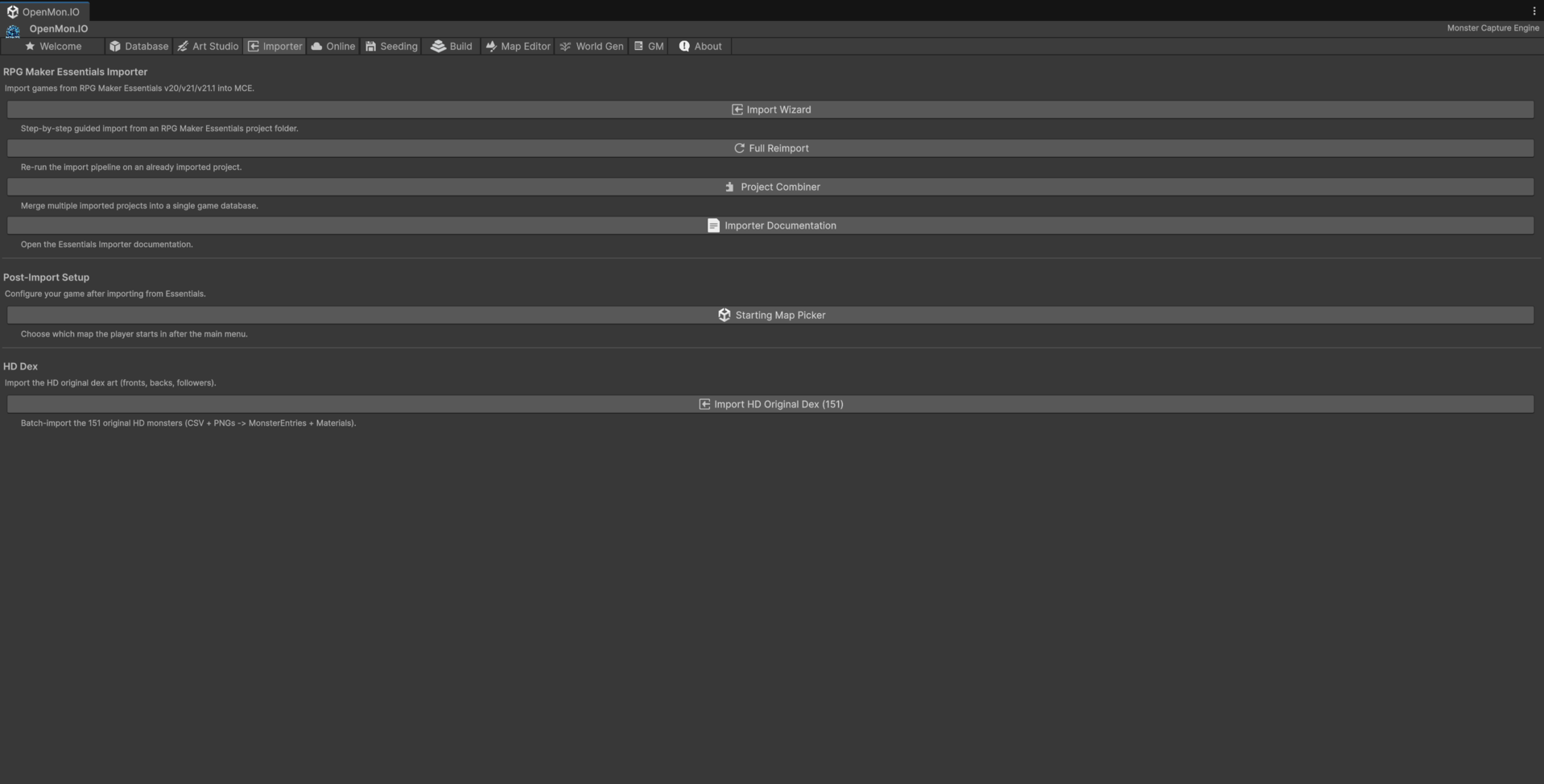
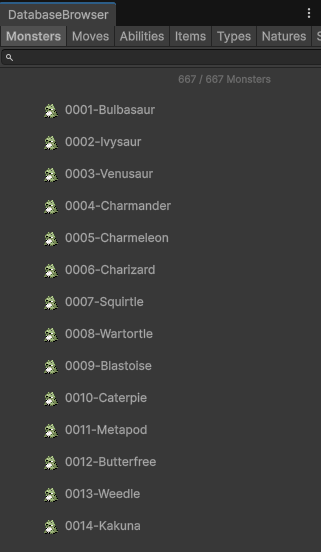
The second screenshot is the point of the whole pipeline: 667 / 667 Monsters, browsable by
species, move, ability, item, type and nature, from a project that was Ruby scripts and PBS text
files an hour earlier.
Available in the Indie, Pro, Source and Studio editions (compiled in Indie and Pro).
Verified Against a Real v21.1 Project
The importer was run headless against a complete Pokemon Essentials v21.1 project (the 2023-07-30 release), converting every list end-to-end with zero errors:
| Data | Result |
|---|---|
| Species | 898 / 898 converted, 0 errors — 335 form overrides applied, 422 evolutions linked |
| Moves | 150 new Move assets created, 590 matched against the existing move library |
| Abilities | 72 created, 195 matched |
| Items | 315 Item assets created, 378 matched |
| Trainers | 20 trainers with populated rosters (72 trainer types processed) |
All 898 species converted to real MCE ScriptableObjects — forms and evolution chains linked — with no fatal errors. This is the importer's headline claim: verified against a complete, real v21.1 project, not a synthetic fixture. The 227 warnings that accompanied the run are all honest degradation notices (move effects with no exact MCE template — see Moves below), never silent data loss.
What Gets Imported
The Essentials Importer handles these data types:
| PE Data | OpenMon Equivalent | Status |
|---|---|---|
| PBS/pokemon.txt | MonsterEntry ScriptableObjects | Supported (898/898 on real v21.1) |
| PBS/pokemon_forms.txt | Form assets + DataByFormEntry overrides | Supported (335 overrides applied) |
| PBS/moves.txt | Move ScriptableObjects | Supported, honest effect mapping |
| PBS/types.txt | MonsterType assets + effectiveness chart | Supported |
| PBS/abilities.txt | Ability ScriptableObjects | Supported (asset-level) |
| PBS/items.txt | Item ScriptableObjects | Supported (concrete SOs generated) |
| PBS/trainers.txt | TrainerDefinition + CharacterData + Roster + Bag | Supported |
| PBS/encounters.txt | WildEncountersSet ScriptableObjects | Supported |
| Monster sprites | Battle Materials + icon Sprites | Supported (per-form + gender variants) |
| Map files (.rxdata) | Unity Scenes with GridController | Supported (needs project-level verification) |
| Tileset images | Unity Sprite Atlases | Supported |
| Map event commands | CommandGraph nodes | Supported (trainer battles wired) |
| Audio files | AudioClips with AudioManager config | Direct copy |
What Requires Manual Work
Some PE features do not have direct automated conversion. We document these as honest, by-design limits rather than leaving them ambiguous:
CommonEvents.rxdata-- Common Events are out of scope by design. They are not imported; port shared event logic to CommandGraph or C# manually.- Ability behavior -- Ability assets are created or cloned, but an imported ability only behaves as richly as the MCE implementation it maps to. Custom or plugin abilities need a matching MCE
Abilityimplementation. - Complex Ruby scripts -- Custom PE scripts beyond standard event commands need manual porting to C# or CommandGraph.
- Plugin-specific data -- Third-party PE plugins store data in non-standard formats.
- Custom UI layouts -- PE's window system is fundamentally different from Unity UI.
- Animated battle sprites -- PE uses a different animation format; sprites import as static frames that you can reassemble.
Prerequisites
Before importing, ensure you have:
- OpenMon installed (Indie edition or above) -- see Installation Guide
- Your PE project folder accessible on disk (the one that contains
PBS/andData/) - A backup of your Unity project. The wizard says it itself: the importer is experimental, provided as-is, and some features are partial (Items) or not implemented (Common Events).
You do not choose the Essentials version (v20, v21 or v21.1): the importer detects it when you scan the project.
Step-by-Step Import
Step 1: Open the Importer
In Unity, open the OpenMon Hub (Tools > MCE > OpenMon Hub) → Importer tab → Import Wizard.
Starting Map Picker, further down the same tab, is the step people miss: it decides which map the player spawns on after the main menu. Without it an otherwise successful import has nowhere to start.
The wizard window shows:
- PE Project Folder -- your project's root folder (the one containing
PBS/,Data/,Graphics/), with a Browse button - Project Name -- a name for this import (for example
FRLGorEmerald). It names the output folder, so several imports can live side by side - Imported Projects -- the imports already in this Unity project
- Import Categories -- a toggle for each data type
- Map Display Mode -- draw the imported maps in 2D (flat, seen from above) or 2.5D (under a tilted camera). Each map can be changed later in Display Mode per Map
- Output Folder and Overwrite Existing Assets
Step 2: Select and Scan Your PE Project
Click Browse and navigate to your Pokemon Essentials project folder, then press Scan Project. The importer validates the folder structure, shows the detected Version and reports what it found:
PBS/pokemon.txt        -- 898 species detected
PBS/moves.txt          -- 740 moves detected
PBS/types.txt          -- 19 types detected
PBS/abilities.txt      -- 267 abilities detected
PBS/items.txt          -- 693 items detected
PBS/pokemon_forms.txt  -- 339 form overrides detected
PBS/trainers.txt       -- 20 trainers detected
(Counts shown are from the real v21.1 2023-07-30 project used to verify the importer.)
Scanning also runs a deep scan of the project's autotiles. When every image a tileset names is in the project, the scan ends with [OK] Missing: 0 - All autotile images found!. A missing image is not judged yet: that happens once the maps are parsed (see the exit-code note in the command-line section and the log legend in Step 5).
Step 3: Choose What to Import
Import Categories has a toggle for each of: Species, Moves, Items, Abilities, Types, Trainers, Encounters, Maps, Sprites, Follower Sprites, Audio and Connections.
For a first import, we recommend importing in stages:
- First pass: Types, Abilities, Moves, Species (data only, no maps)
- Second pass: Items, Trainers, Encounters
- Third pass: Maps and Audio
- Fourth pass: Review the events and the scene integration (below)
This staged approach lets you verify each data layer before building on it.
Step 4: Run the Import
The wizard works in phases, and each one has its own button:
| Button | What it does |
|---|---|
| PARSE DATA | Phases 1-2: reads the PBS text files and the .rxdata maps and tilesets according to the detected Essentials version. Nothing is created in your project yet. |
| CONVERT TO MCE | Phase 3: turns the parsed data into MCE ScriptableObjects and scenes under the output folder. Enabled after a successful parse. |
| FULL IMPORT (Parse + Convert) | Parse, convert and integrate in one go. |
| INTEGRATE SCENES (Phase 6) | Wires the imported scenes into the MCE runtime: registers them in the scene manager, wires each SceneInfo, places the warp triggers, links the encounter sets and adds the scenes to the Build Settings. Run it after the import (the full import already does). |
Everything is written to Assets/ImportedGames/<Project Name>/, and a detailed import log shows successes, warnings, and items needing attention.
Step 5: Review the Import Log
The log categorizes results:
- [OK] -- data converted successfully
- [WARN] -- data converted but with assumptions (e.g., a move effect with no exact MCE template, cloned by category), or a leftover that loses nothing (a tileset names an autotile image the project does not ship, but no map uses that tileset)
- [ERR] -- data that could not be automatically converted (including an autotile image that a tileset used by at least one map names and the project does not ship)
Step 6: Make the Game Playable
After the integration, use Starting Map Picker if you want a different start map. The wizard's Restore MCE Original Demo and Restore Imported Demo buttons switch the Build Settings between the demo scenes and the imported ones.
DELETE ALL IMPORTED PROJECTS removes every imported project folder and profile. Back up before pressing it.
Step 7: Rename for Commercial Use
This step is critical for commercial releases.
Your PE project likely uses Pokemon-specific names for monsters, characters, and items. These must be replaced with original names before you can sell your game. Use the Database Browser to review and rename imported data:
- Open the OpenMon Hub (
Tools > MCE > OpenMon Hub) → Database tab → Database Browser - Search your imported species database
- Rename each entry's display name to your original name
- Because assets are referenced by object reference, encounter tables, trainer rosters, and evolution chains keep working after a rename
Move names and ability names are generally safe to keep as-is (they describe mechanics, not IP), but monster names, character names, and item names with Pokemon-specific branding must change.
What the Pipeline Imports, Step by Step
Parse (phases 1-2) reads, in order: types, abilities, moves, items, species, trainers, encounters, map connections, map metadata, tilesets and maps.
Convert (phase 3) then runs these steps (each is skipped when its category is off):
- Scan the MCE assets that already exist, so matching ones are reused instead of duplicated.
- Create the missing moves and abilities by cloning and configuring.
- Convert species, with their forms and evolutions (all moves and abilities exist by now).
- Report unmatched references.
- Link sprites from the PE
Graphics/folder, and follower sprites if the project has them. - Rebuild the central monster database; convert types; make sure the 25 natures exist; export items and trainers.
- Slice the tilesets into Unity tile assets and bake the autotiles.
- Convert the maps to Unity scenes and wire their connections.
- Convert encounters into
WildEncountersSetassets. - Import the audio (BGM, BGS, ME, SE), the overworld character sprites, the battleback images and the trainer sprites.
- Extract the warps and event data, and convert the event commands into CommandGraphs.
Integrate (phase 6) registers, wires and adds the scenes as described in the table above.
How Each Data Type Converts
Sprites and Battle Materials
Real Essentials packs name monster sprites by INTERNALNAME, not by dex number. The SpriteLinker matches sprite files by internal name, links art per form, and honors gender variants: the default art field carries the female/genderless sprite ({name}_female.png) and a separate male-override field carries the base sprite.
Critically, the linker generates the battle Materials for each of the four faces (Front, Back, Front-Shiny, Back-Shiny) plus the icon sprite. MCE's battle model references sprites through Materials (a flipbook shader), so without this step an imported monster would be invisible in battle. Sprite linking runs when you import with sprites enabled.
Moves (Honest Effect Mapping)
Move effects come from Essentials FunctionCodes. The importer maps 307 distinct FunctionCodes to concrete MCE move templates (verified in MoveConverter.FunctionCodeTemplates) — a mapping expanded across several batches, including a residual pass covering two-turn/charge attacks and power-modifier moves.
Any FunctionCode not in the table degrades honestly: the move is still created, cloned by its damage category, and a visible warning is logged (unmapped FunctionCode '…'. Cloned by category only.). This is deliberate — degradation is never silent. A few codes are intentionally left unmapped when no faithful MCE template exists, because an honest fallback beats a wrong clone.
Items
ItemConverter generates concrete MCE Item ScriptableObjects for every parsed item (reusing any existing MCE Item that matches by name for idempotency) and exports the raw PE data as JSON for reference. Item effects that MCE cannot model are logged as warnings, and the item is still created as an inert bag item.
Trainers
Repeated Pokemon = SPECIES,level blocks in trainers.txt parse correctly (a common pitfall — duplicate keys are preserved, not collapsed). TrainerConverter creates a TrainerDefinition, CharacterType, CharacterData, Roster, and Bag for each trainer. Map events that call pbTrainerBattle(:TYPE, "Name") are wired to the matching imported TrainerDefinition, so imported trainers reach real runtime battles.
Encounters
EncounterConverter builds WildEncountersSet assets and resolves species by raw, uppercase, and normalized names — including species whose names contain punctuation or gender symbols — so encounter tables link to the right monster even for awkward internal names.
Forms and Evolutions
Form overrides create or reuse Form assets and DataByFormEntry data; a missing base species warns without counting as success. Evolution wiring runs as a second pass (after every species asset exists) so targets resolve, and rebuilds the evolution list idempotently on re-import. The converter maps the full set of v21.1 evolution-method headers — level, time-of-day, gender, item, hold-item, trade, move-known, in-party, and critical-hit variants — to MCE evolution commands.
Command-Line Import
Two entry points run the importer without opening the wizard. They differ in how much they do.
The full import: ImportarCompletoDesdeCli
Runs the whole wizard pipeline -- data, maps, encounters, audio, sprites, warps, events and scene integration -- exactly like the FULL IMPORT button:
Unity.exe -batchmode -projectPath . \
  -executeMethod OpenMon.MCE.EssentialsImporter.Editor.EssentialsImporterWizard.ImportarCompletoDesdeCli \
  -essentialsProyecto "D:/Games/MyEssentialsProject" \
  -essentialsNombre "MyGame" \
  -essentialsModo 2.5D
| Argument | Meaning |
|---|---|
-essentialsProyecto <folder> | The Essentials project (must contain PBS/ and Data/) |
-essentialsNombre <name> | The import's name. The output goes to Assets/ImportedGames/<name>/ |
-essentialsModo <2D or 2.5D> | Optional. How the maps are drawn; 2D if omitted |
It refuses to write over an existing output folder: the pipeline writes and rewrites there, and what was there would be lost. Pick another -essentialsNombre, or move the old folder out of the project. It also refuses when the project folder does not exist or lacks PBS/ or Data/.
The editor ends itself with exit code 0 when scenes were produced and no [ERR] line was logged, 1 otherwise, and 2 if it could not start (missing argument, unknown mode, project not found, output folder already there). Its log lines start with [EssentialsCompleto].
A tileset that names an autotile image the project does not ship is judged after the maps are parsed. It is an [ERR] only if at least one map uses that tileset. If no map uses it, it is a [WARN] ("no map uses that tileset, so nothing is lost") and does not fail the import.
The data-only import: EssentialsHeadlessImport
For CI, or when you only need the database (species, moves, items...) and no maps, EssentialsHeadlessImport runs the data pipeline with no window:
Unity.exe -batchmode -quit -projectPath . \
  -executeMethod OpenMon.MCE.EssentialsImporter.Editor.EssentialsHeadlessImport.RunCli
RunCli reads its inputs from environment variables:
| Variable | Meaning | Default |
|---|---|---|
MCE_IMPORT_PROJECT | The Essentials project root | ./Pokemon Essentials v21.1 2023-07-30 |
MCE_IMPORT_OUTPUT | Unity-relative output folder | Assets/ImportedGames/_v21batch |
MCE_IMPORT_SPRITES | Link sprites and followers (false, 0, no or off skips them) | on |
MCE_IMPORT_REBUILD_DB | Rebuild the project's MonsterDatabaseInstance (false leaves it untouched) | on |
It first clears the previous output folder, so the run is deterministic, then writes a compact one-line-per-section report to Logs/v21-batchmode-summary.txt and exits 0 on success or 1 on failure.
From C# you can call EssentialsHeadlessImport.Run(projectPath, outputPath, importSprites, rebuildDatabase) instead; it returns an ImportSummary with the true counts (species, moves, items, abilities and trainers created, matched and skipped).
It imports types, abilities, moves, items, species with their forms and metrics, sprites, followers, natures and trainers, and rebuilds the database. It deliberately skips maps, scenes, tilesets, autotiles, encounter scenes, audio, overworld/battleback/trainer media, event-command graphs and the scene integration -- each skip is recorded in the summary's SkippedSteps.
A complete import with sprite generation performs multi-minute synchronous AssetDatabase work. Run it in batchmode with the editor closed rather than interactively, so the long asset churn does not block your editor. Interactive imports are best for staged, data-only passes.
For cartridge dumps (HeartGold / SoulSilver, FireRed, Black / White) and their game profiles, see Imported Games and Game Profiles.
Post-Import Checklist
After importing, work through this checklist:
- Verify species data in the Monster Database Editor
- Spot-check type effectiveness in the Type Chart Editor
- Test a few battles with imported monsters and moves
- Walk through imported maps and verify tile collisions
- Test NPC events and dialog flow
- Replace all Pokemon-specific names with originals
- Add your own sprites for renamed monsters
- Configure encounter tables for your game's progression
- Set up save system with your game's save format
Common Import Issues
"Species X has an unknown ability"
PE allows custom abilities via plugins. If the importer does not recognize an ability, it maps to a placeholder. Create a custom Ability asset in OpenMon to match the behavior.
"Map tile Y has no matching collision type"
PE uses some tile properties that do not map directly to OpenMon's GridController. The importer creates the tile but flags it for manual collision assignment.
"Evolution method Z not supported"
OpenMon supports 37 evolution types, but PE plugins may add custom ones. These are logged as warnings for manual implementation.
Why Migrate?
The effort of importing and renaming is a one-time cost. What you gain:
| Before (PE) | After (OpenMon) |
|---|---|
| Windows only | 7+ platforms |
| Fan game only | Commercial release |
| No multiplayer | 25 online service classes available |
| Ruby scripting | C# with full IDE support |
| No automated tests | NUnit test framework |
| Manual deployment | Unity build pipeline |
| 320x240 resolution | Any resolution |
Your years of creative work -- the world you built, the monsters you designed, the story you wrote -- deserves to reach the widest possible audience on the best possible technology.
Get Help
- Discord: Join the OpenMon community -- the #essentials-import channel has dedicated support
- Documentation: Browse the full guide library for OpenMon-specific workflows
- Issues: Report import bugs on GitHub