Type System
The type system is the backbone of battle strategy in any monster capture game. MCE includes a fully configurable type effectiveness chart, dual-type support, and editor tooling for customizing the type matchups.
Overview
Every monster has one or two types. Every move has exactly one type. When a move hits a target, the game calculates a type effectiveness multiplier based on the move's type vs. the target's type(s).
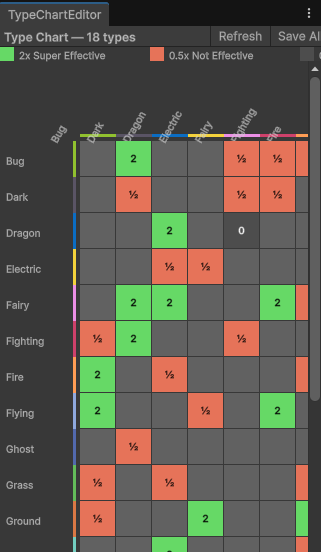
The chart is data, not code — the editor above writes the same assets the battle formula reads at runtime. That is what makes an 18-type grid a starting point rather than a rule: you can add a type, remove one, or rewrite a cell, and nothing needs recompiling.
The default multipliers are:
| Result | Multiplier | Message |
|---|---|---|
| Super Effective | 2.0x | "It's super effective!" |
| Not Very Effective | 0.5x | "It's not very effective..." |
| Immune | 0.0x | "It doesn't affect [target]..." |
| Neutral | 1.0x | (no message) |
For dual-typed monsters, the multipliers stack multiplicatively. A Fire move against a Grass/Ice monster deals 2.0 x 2.0 = 4.0x damage.
Default Type Chart
The demo ships with 18 types matching the standard monster capture genre (plus a Typeless type):
Normal, Fire, Water, Grass, Electric, Ice, Fighting, Poison, Ground, Flying, Psychic, Bug, Rock, Ghost, Dragon, Dark, Steel, Fairy
These 18 types are only a starting point. Types are ordinary MonsterType assets, so you can add, remove, or rename them. Some games use fewer types (early gens used 15), and some original games create entirely custom type charts.
Type Effectiveness Chart
The chart is stored on the types themselves: every MonsterType asset has an AttackMultipliers dictionary (defending type → multiplier) for the moves of that type. The IMonsterDatabase.GetTypeEffectiveness() method returns the multiplier at runtime:
float multiplier = database.GetTypeEffectiveness(attackingType, defendingType);
Key matchups to remember:
| Attacking Type | Strong Against (2x) | Weak Against (0.5x) | Immune (0x) |
|---|---|---|---|
| Fire | Grass, Ice, Bug, Steel | Fire, Water, Rock, Dragon | -- |
| Water | Fire, Rock, Ground | Water, Grass, Dragon | -- |
| Grass | Water, Rock, Ground | Fire, Grass, Poison, Flying, Bug, Dragon, Steel | -- |
| Electric | Water, Flying | Electric, Grass, Dragon | Ground |
| Ground | Fire, Electric, Poison, Rock, Steel | Grass, Bug | Flying |
| Ghost | Psychic, Ghost | Dark | Normal |
| Normal | -- | Rock, Steel | Ghost |
The full chart is viewable and editable in the Type Chart Editor. A pair that is missing from a type's dictionary counts as neutral (1.0x).
Dual Types
When a monster has two types, both types are checked when receiving damage:
Final Multiplier = Effectiveness(move_type vs type1) * Effectiveness(move_type vs type2)
This creates several interesting scenarios:
| Move Type | Target Types | Calculation | Result |
|---|---|---|---|
| Ice | Dragon / Flying | 2.0 x 2.0 | 4.0x (double super effective) |
| Electric | Water / Ground | 2.0 x 0.0 | 0.0x (immune, Ground absorbs) |
| Fighting | Normal / Ghost | 1.0 x 0.0 | 0.0x (immune, Ghost absorbs) |
| Water | Fire / Rock | 2.0 x 2.0 | 4.0x (double super effective) |
STAB (Same-Type Attack Bonus)
When a monster uses a move that matches one of its own types, the move gets a 1.5x STAB bonus (DamageMath.StabMultiplier). The bonus multiplies with the type effectiveness and the other damage factors:
Final Damage = Base Damage * STAB * Type Effectiveness
For example, a Water-type monster using a Water move against a Fire target:
Base * 1.5 (STAB) * 2.0 (super effective) = 3.0x total
Using the Type Chart Editor
The Type Chart Editor is an interactive grid tool for viewing and modifying type matchups:
Open the OpenMon Hub (Tools > MCE > OpenMon Hub) → Database tab → Type Chart Editor
In the editor:
- View Mode -- The grid shows the full NxN type chart; the title bar says how many types it lists. Rows are attacking types, columns are defending types, and each type's color marks its row and column.
- Color Coding -- Green = super effective (2x), Red = not very effective (0.5x), Dark gray = no effect (0x), Light gray = neutral (1x).
- Edit Mode -- Click any cell to cycle through the values: neutral → 2 → 0.5 → 0 → neutral. Every change can be undone with Unity's Undo.
- Refresh -- Reloads the list of types from the project (it also reloads when the window gets focus).
- Save All -- Marks every type dirty and saves the assets to disk.
The grid lists the MonsterType assets that have Index switched on. To add or remove a type, create or delete the asset (below) -- the editor has no add or remove button of its own.
Modifying the type chart affects all battles in your game. Test thoroughly after any changes. Adding or removing types requires updating monster and move assignments.
Creating Custom Types
If you are building an original game, you may want a custom type chart:
- Create a
MonsterTypeasset:Assets > Create > MCE > Monster Database > Type, or New Monster Type in the Hub's Database tab. Name it (e.g.,Cosmic,Sound,Digital), set its color and icon, and keep Index on so it shows up in the chart. - Open the Type Chart Editor and press Refresh: the new type appears as a row and a column.
- Set the effectiveness values for every interaction with existing types.
- Create monsters and moves that use your new type.
Design Tips for Custom Types
- Balance offensively and defensively. A type should have roughly equal strengths and weaknesses.
- Avoid too many immunities. Immunities are powerful and can create frustrating gameplay if overused.
- Keep the total number manageable. 15-20 types is the sweet spot. More than 25 becomes hard for players to memorize.
- Create interesting counterplay. The best type matchups create risk/reward decisions, not automatic wins.
Querying Types in Code
SDK Interface (Indie, Pro, Source and Studio Editions)
using System.Linq;
using OpenMon.MCE.SDK;

IReadOnlyList<MonsterType> allTypes = engine.Database.GetAllTypes();
var fire = allTypes.FirstOrDefault(type => type.name == "Fire");
var grass = allTypes.FirstOrDefault(type => type.name == "Grass");

float effectiveness = engine.Database.GetTypeEffectiveness(fire, grass);
// Returns 2.0 when both types exist in the database
Direct Access (Source and Studio Editions)
With source code access, you can also work with the type chart directly through the MonsterDatabase classes and modify effectiveness values at runtime for special battle conditions.
Best Practices
- Use the Type Chart Editor for modifications -- it records undo steps and saves the type assets for you.
- Document your custom types if you are creating an original game. Players need to learn the matchups.
- Test edge cases with dual types. 4x weaknesses and double immunities can surprise players.
- Consider move distribution when balancing types. A type that is defensively strong but has no good moves available is effectively weak.